News:

Welcome to our NEW forum! We invite you to sign up today
so it can grow to be a valuable resource to all Toolbox users!

Main Menu
Menu

Show posts

This section allows you to view all posts made by this member. Note that you can only see posts made in areas you currently have access to.

Show posts Menu

Topics - Paul (Lead Developer)

#21
Question: Trouble changing priority of program in registry

"I'd like to permanently set a program to have a higher priority than normal. I found a few websites recommending the same registry change but it doesn't seem to have any effect."

This user wants a certain program to always open with a specific process priority set. He wanted to use the Windows Registry to do it, but that's dangerous and not recommended. Instead, just use AlomWare Toolbox to change any app's process priority when it starts, and avoid the risky Registry and batch files altogether.

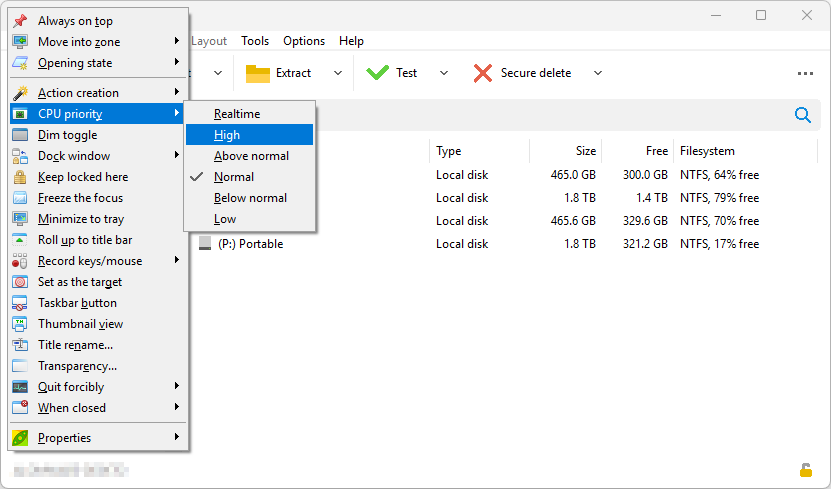
So, how is it done? Let's demonstrate by making PeaZip always open in High priority instead of Normal priority. When PeaZip opens, middle-click its icon area to open AlomWare Toolbox's Power menu. Then highlight the "CPU priority" item and select "High" to change its priority:


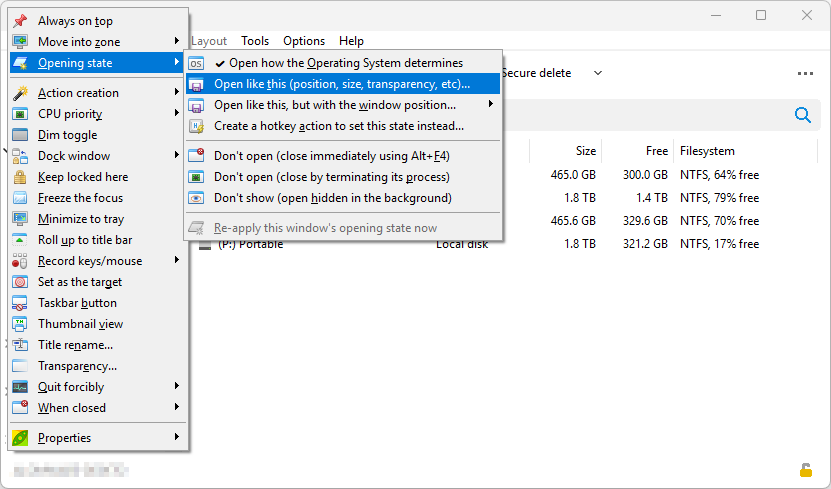
Next we want to make PeaZip always open that way, so again middle-click its icon area but this time select "Opening state > Open like this" from the Power menu:


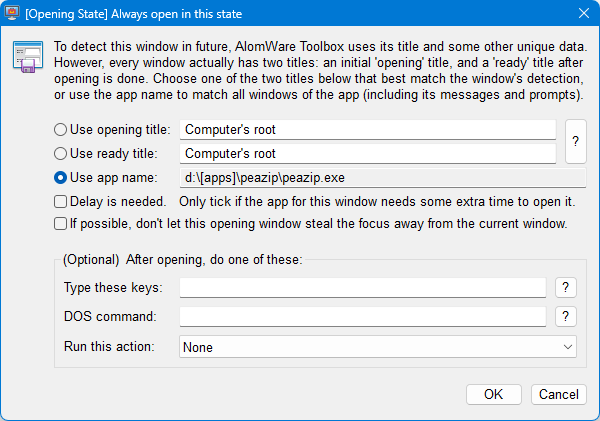
A confirmation window will now open for PeaZip, so select "Use app name" and click "OK" to save this PeaZip opening state:


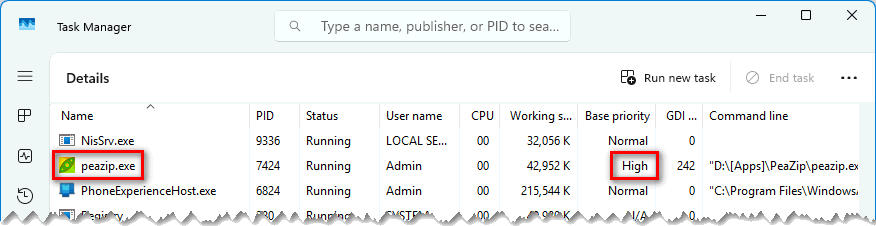
That's it! Now whenever PeaZip opens, it will be in High process priority instead of Normal. The Task Manager confirms it:


Did you know: If you change some other settings in the Power menu before selecting "Opening state > Open like this", then those settings will get saved for the opening state as well. So you could make PeaZip open on top of all other windows, and/or always open it dimmed, and/or open it transparent, etc. Cool! 8)
#22
Question: Start WhatsApp Minimized At Windows Startup

"There are two general WhatsApp settings:
  • Start WhatsApp at Login.
  • Minimize to System Tray (Keep WhatsApp running after closing the application window).
But when I start Windows, WhatsApp opens with the window open on my desktop. I want it to start minimized when Windows starts."

This user wants WhatsApp to minimize to the system tray when it starts, because he's tired of manually closing its window to make it do so. AlomWare Toolbox is the perfect solution to this, because you can use AlomWare Toolbox to do anything to a given window when it opens.

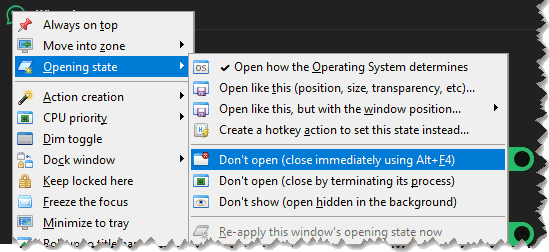
To do this, when the WhatsApp window first opens, just middle-click its icon area and select "Opening state > Don't open (close immediately using Alt+F4)" as shown below. Then click the "OK" button on the confirmation box that appears. That's it! Now when WhatsApp's window first opens, AlomWare Toolbox will automatically close it, thus invoking WhatsApp's own function to minimize itself to the system tray.

Related: See our tip about how to auto-minimize any opening window to the systray.


#23
If you've got an app whose window you want to always start minimized to the system tray when it starts, but the app itself doesn't support this feature, then you can make it happen with AlomWare Toolbox!

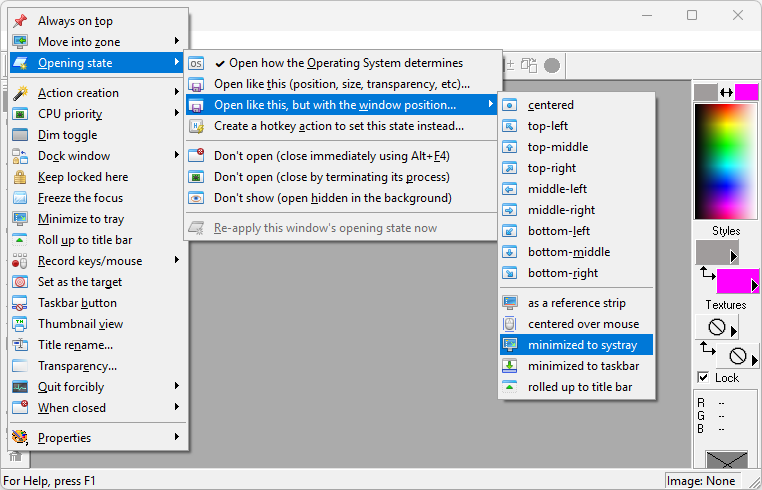
When the window opens, middle-click its icon area and select "Opening state > Open like this, but with the window position > minimized to systray", as shown in the example below for "Paint Shop Pro". Then click the "OK" button on the confirmation box that appears. That's it! Now when that window first opens, AlomWare Toolbox will auto-minimize it to the system tray for you, and you just click the icon in the systray to show the window again.

#24
If you don't want the Windows taskbar to burn in on your OLED monitor, you probably have it set to auto-hide. This works, but it means you can't see the PC's clock or which apps you have running, which can be a deal-breaker for productivity.

AlomWare Toolbox offers the perfect alternative: an option to shrink the taskbar to 1/4 of its size while keeping it in the full-sized taskbar area, but auto-moving it every minute to a different spot inside that area. See the screenshot below. That way you still get to see it at all times, but it won't cause burn-in on your monitor. When you move the mouse over it, it auto-expands back to full size temporarily for clicking something or just to see it at 100% size.

#25
One of the most annoying things with Windows (the OS) is when you're working in one window, and then another window (or prompt) pops up and steals the focus from it. This can have drastic implications, like when you're typing a password into a window and it switches to another!

With AlomWare Toolbox, you can freeze the focus to the window that you're currently using so you can't leave it at all, not even with Alt+Tab, Win+Tab or the Windows key. Just middle-click its icon area and select Freeze the focus from the menu. Now other apps can't switch you out of it, but you can manually switch to another yourself by holding down the Ctrl key when selecting and clicking another window.

And yes, AlomWare Toolbox is smart enough to allow access to sub-windows of the frozen one, such as when it shows a message or a file selection dialog. ;)

Tip: Another use of this feature is to "lock" the current window so that your kids (or kitten!) can't mess with your PC when you step away for a moment. An empty Notepad window is a useful candidate for this.


You can also use the action below, set to a hotkey, to toggle freezing the focus to the active window.

(Start)
HOW TO USE: Copy from Start to End, and then paste into an action.
REFERENCE : See an example of pasting at alomware.com/paste.png
0001 Action: Allow failure messages "0"
0002 Window: Assign active ""
0003 Window: Freeze the focus ""
(End)
#26
Disclaimer: Some of these features require an English keyboard layout to be used on Windows.

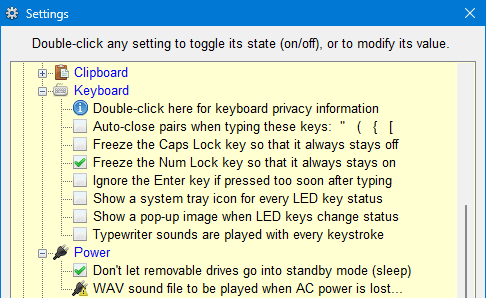
Did you know that AlomWare Toolbox can enhance your keyboard? For example, are you sick of accidentally turning off Num Lock by mistake? Lock it on so you always type numbers on the keypad instead of it accidentally moving the cursor.

Here's some other keyboard enhancements:

  • Have closing brackets auto-typed when you type the opening bracket.
  • There's a Caps Lock status indicator for laptops (and also Num/Scroll lock).
  • Hear mechanical typewriter sounds as you type (perfect for auditory feedback).
  • Do you sometimes press the Enter key too quickly after typing a form on a website, and therefore submit something with typos? You can now make your keyboard wait half a second before Enter can be pressed after typing, saving you from the wrong text being submitted and the potential embarrassment that follows it.

To set the above tweaks, refer to this Settings area of AlomWare Toolbox:

#27
One of the annoying things about Windows is when you need to browse inside a sub-folder of the one that you're currently in, but without losing your place or selection of the current one.

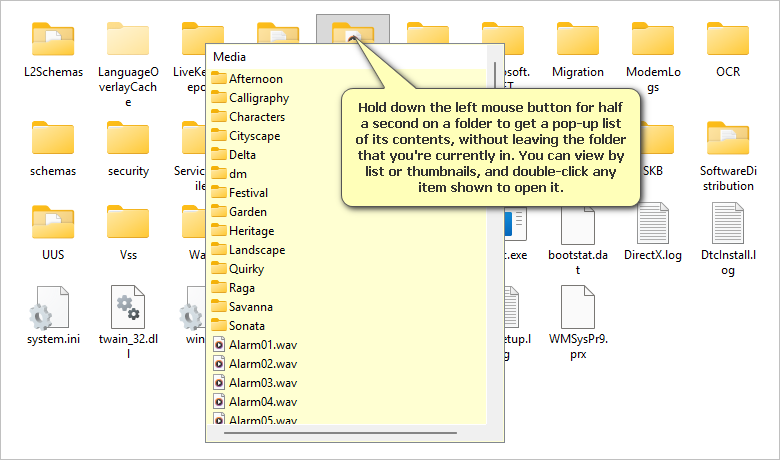
With AlomWare Toolbox, just hold down the left mouse button for half a second on any folder to peek inside it from a pop-up list that appears. Double-click any item in the list to open it, or press Esc or click away to close it.

Note: There's a setting in AlomWare Toolbox to show the peeked view as either a list or as thumbnails.

#28
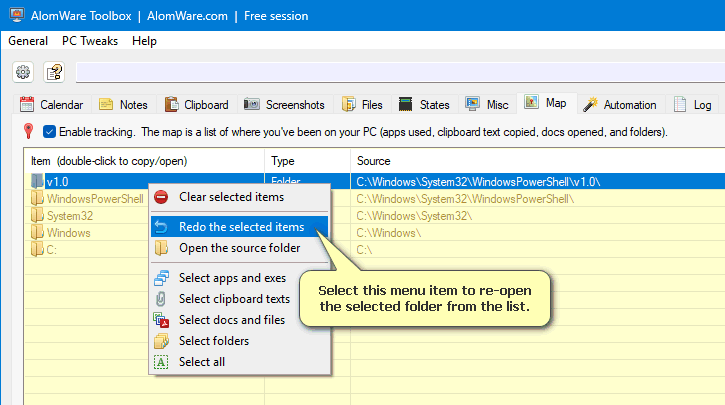
When you accidentally close a folder in Windows, it can be annoying and laborious to manually navigate back to re-open it. Not anymore! With AlomWare Toolbox, you can quickly get back to it (and also closed apps and docs) in just a few clicks.

  • Open AlomWare Toolbox's window with its hotkey.
  • Go to the Map tab.
  • Find the folder in the list, and simply double-click to re-open it.

Note: For privacy, you can disable the Map tab's tracking function at any time with a single click.

#29
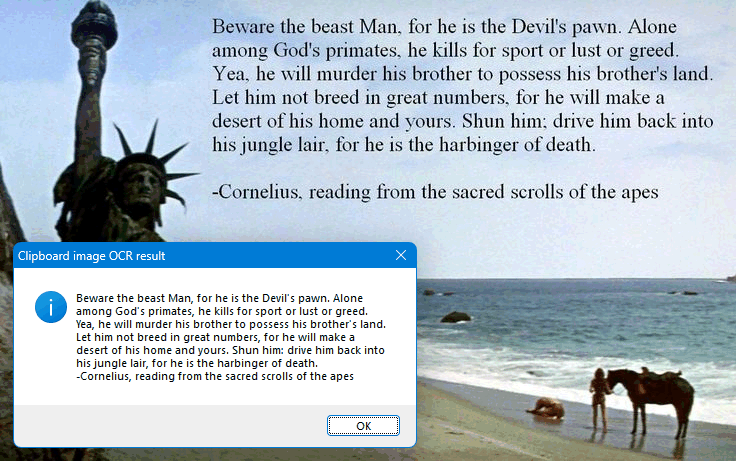
When you want to copy or extract the text from an image, you can use AlomWare Toolbox's OCR function. This example action gets the text from the image currently in the clipboard, with the result shown in the screenshot under it:

(Start)
HOW TO USE: Copy from Start to End, and then paste into an action.
REFERENCE : See an example of pasting at alomware.com/paste.png
0001 String: Assign from clipboard image ""
0002 Alert: Show a message "string$"
(End)

#30
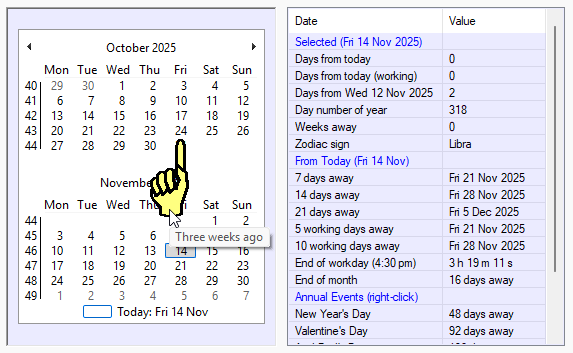
Sometimes when working, you'll need to reference something on your screen that may be difficult to quickly see again when your gaze has shifted off it. AlomWare Toolbox has a handy automation function to place a pointing finger where the mouse is, so you can continue working but still easily see what you've pointed at. You would assign the action to a hotkey to do this.

In the screenshot below, the finger is pointing at the date of 24 Oct 2025 on a window (because we're assuming we need to remember that date while doing something else). When the window moves or is maximized, the finger moves with it. To remove the finger, you just click it and press the Delete key.

Note that fingers can't detect when a window's tab has changed, and won't scroll if pointing at something that moves with a scrollbar. Unlike the Windows mouse, fingers are included in screenshots, thus giving a handy way to point at something when taking a shot.

Here is the action to use to show a finger at the mouse with a hotkey:

(Start)
HOW TO USE: Copy from Start to End, and then paste into an action.
REFERENCE : See an example of pasting at alomware.com/paste.png
0001 Computer: Point at the mouse ""
(End)

#31
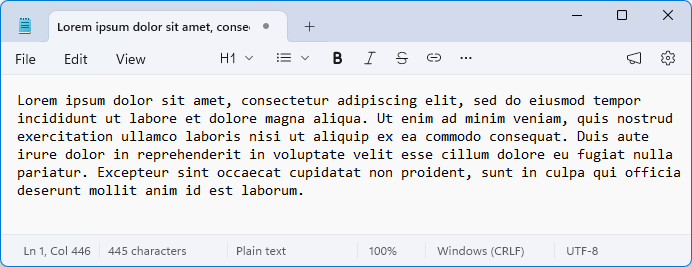
One of AlomWare Toolbox's variables for its actions is called lorem$, and it's the first part of the famous Lorem ipsum text. So when you need to test something with some placerholder text and you don't want to randomly bash your keyboard to generate some gibberish to use, you can use an action like below to insert the Lorem ipsum text for you (without losing the current text in the clipboard).

(Start)
HOW TO USE: Copy from Start to End, and then paste into an action.
REFERENCE : See an example of pasting at alomware.com/paste.png
0001 Keyboard: Paste this text "lorem$"
(End)

Here's what happens when you use a hotkey with this action in Notepad:

#32
Most apps have an option to do something specific when a task finishes. For example, a file downloading app can be set to shut down your PC when a long download has completed. But what if an app doesn't offer this, or maybe you just want to be alerted with a whistle when a window closes? AlomWare Toolbox to the rescue!

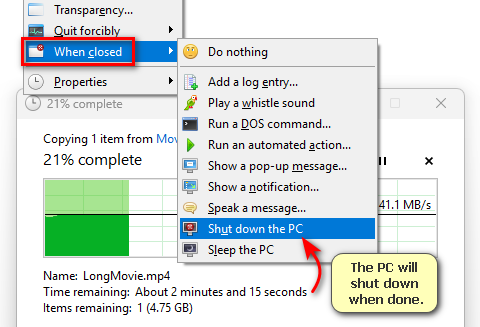
With AlomWare Toolbox, just middle-click the icon area of a window's title bar and select the "When closed" menu item. A sub-menu opens where you can select what you want to happen when the window closes. The available options are:

  • Do nothing (to cancel a previous selection)
  • Add a log entry (to AlomWare Toolbox's "Log" tab)
  • Play a whistle sound (great for when you're in another room!)
  • Run a DOS command
  • Run an automated action (from AlomWare Toolbox's "Automation" tab)
  • Show a pop-up message
  • Show a notification (in the system tray)
  • Speak a message (using the PC's default voice)
  • Shut down the PC
  • Sleep the PC

In the screenshot below, AlomWare Toolbox will shut down the PC when a long file copy has finished.

#33
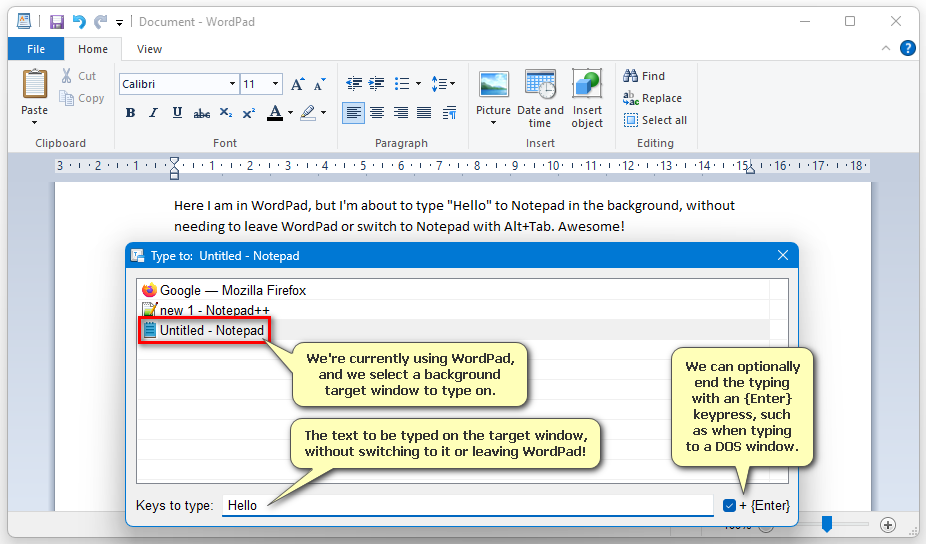
With AlomWare Toolbox, you can type to a background window without leaving the one you're currently in. No need to press Alt+Tab or click the other window's button in the taskbar! :o

Just use the action below with a hotkey trigger for it. Then, no matter which window you're using, just press the hotkey and select the target background window from a pop-up list that appears. Type the text you want to send, and press the Enter key to send it. The keystrokes are sent and you'll still be back in your current window.

(Start)
HOW TO USE: Copy from Start to End, and then paste into an action.
REFERENCE : See an example of pasting at alomware.com/paste.png
0001 Keyboard: Type to selected window ""
(End)

#34
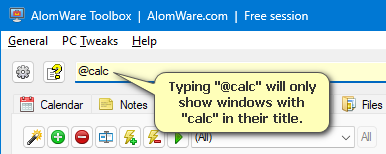
To quickly find and select a window by its title text (either full or partial), just press AlomWare Toolbox's hotkey and then type @title where title is part of the window's title text to find. As you type, the app auto-minimizes all non-matching windows. Once found, just close AlomWare Toolbox's window with the Esc key and the found window gets activated for use.

#35
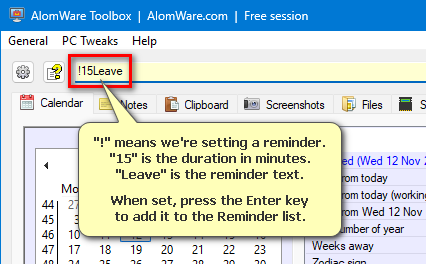
AlomWare Toolbox is probably the only app in existence that lets you set a quick reminder on your PC at any time (no matter which app you're using), and in a minimum of 6 keystrokes without even touching the mouse! Now, this is assuming your reminder is for an hour or less away, and that you're happy to use one single character of text for the reminder message; but it's doable! ;D

To set a quick reminder, follow these steps:

  • Open AlomWare Toolbox with its hotkey (first keystroke).
  • Type ! to indicate that you're setting a reminder (second keystroke).
  • Type the number of minutes away for the reminder (third and fourth keystrokes).
  • Type the reminder text (can be one single character if desired [fifth keystroke]).
  • Press the Enter key to start the reminder's countdown (sixth keystroke).

Here's a screenshot of doing the above to set a quick reminder (countdown) for you to leave home in 15 minutes:


You can also set quick reminders for a specific time of day by replacing the number of minutes with the target time in 24-hour HH:MM format:

#36
Tips and Tricks / [Tip] Bulk creation of folders
March 08, 2026, 03:49:42 PM
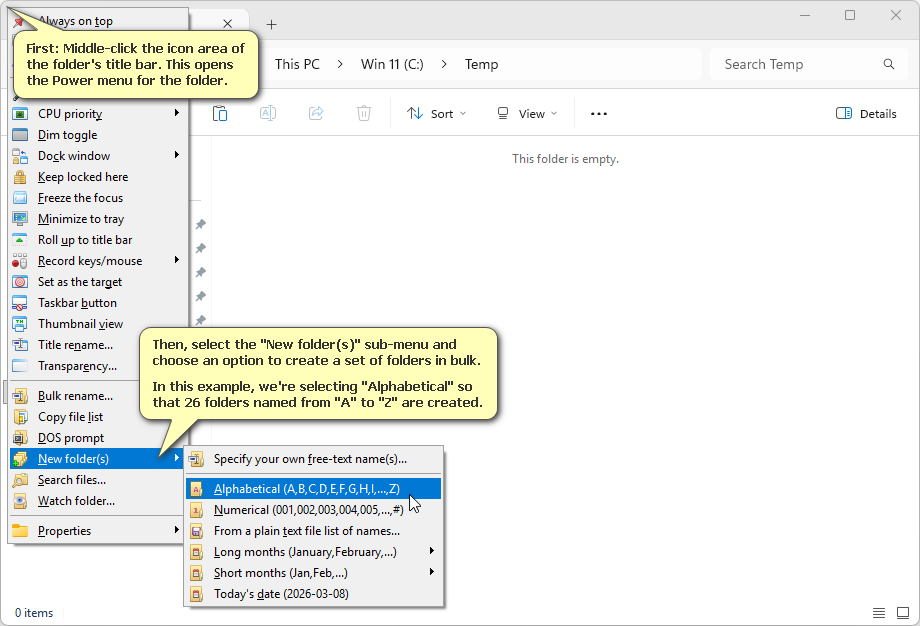
If you need to create a set of new folders in bulk, then AlomWare Toolbox is the answer! First, middle-click the folder's icon area (top-left of its title bar) to open the Power menu for the folder. Then select the "New folder(s)" sub-menu, and choose the new folders type:


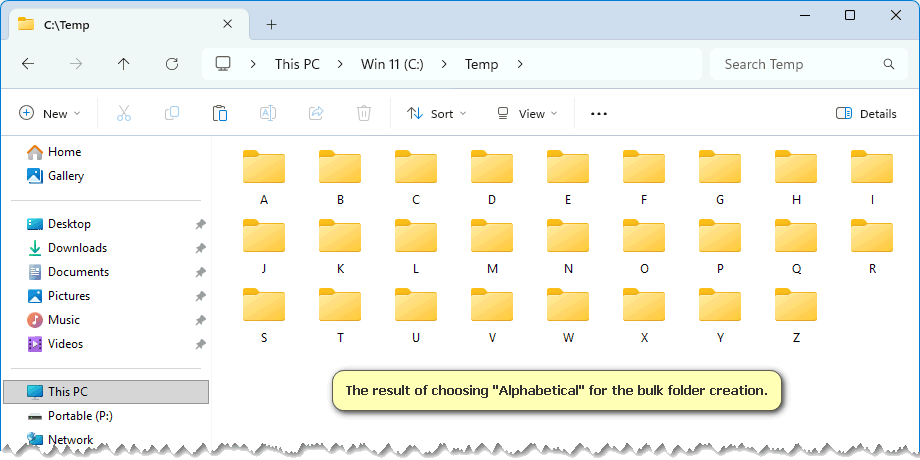
The result of choosing "Alphabetical" for the bulk folder creation:


If you choose the "Free-text names" option, you can specify new folder names separated by the pipe character ("name1|name2"), and even sub-folders ("parent\child\grandchild"):


Lastly, if you have a text file list of names, you can select that file to create the new folder names from.
#37
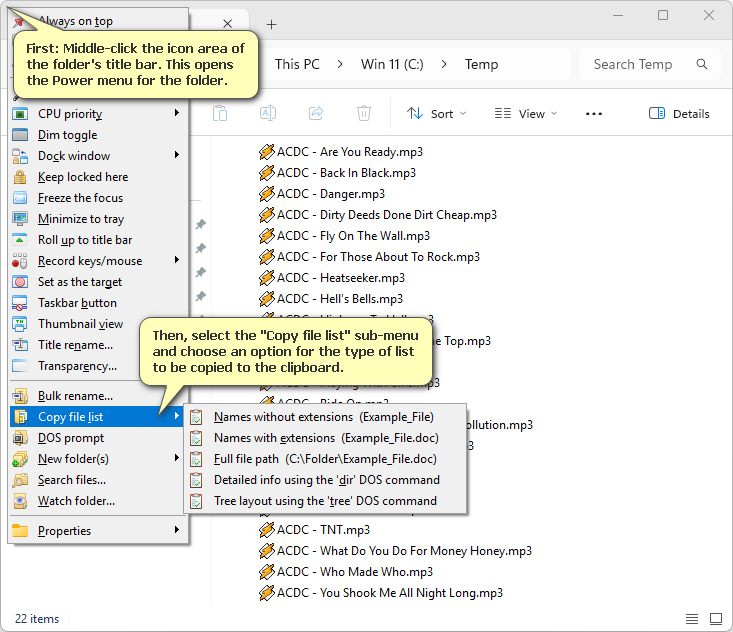
AlomWare Toolbox lets you quickly and easily copy a list of files in a folder to the clipboard. First, middle-click the folder's icon area (top-left of its title bar) to open the Power menu for the folder. Then select the "Copy file list" sub-menu, and choose a copy type. One example use of copying a file list is to create a music playlist from the MP3 files in a folder. Another example would be to create a text-based index of files for future reference.


Copying names without extension:

ACDC - Are You Ready
ACDC - Back In Black
ACDC - Danger
ACDC - Dirty Deeds Done Dirt Cheap
ACDC - Fly On The Wall
ACDC - For Those About To Rock
ACDC - Heatseeker
ACDC - Hell's Bells
ACDC - Highway To Hell
ACDC - It's A Long Way To The Top
ACDC - Money Talks
ACDC - Playing With Girls
ACDC - Ride On
ACDC - Rock And Roll Ain't Noise Pollution
ACDC - Shake Your Foundations
ACDC - Sink The Pink
ACDC - Stand Up
ACDC - Thunderstruck
ACDC - TNT
ACDC - What Do You Do For Money Honey
ACDC - Who Made Who
ACDC - You Shook Me All Night Long

Copying names with extension:

ACDC - Are You Ready.mp3
ACDC - Back In Black.mp3
ACDC - Danger.mp3
ACDC - Dirty Deeds Done Dirt Cheap.mp3
ACDC - Fly On The Wall.mp3
ACDC - For Those About To Rock.mp3
ACDC - Heatseeker.mp3
ACDC - Hell's Bells.mp3
ACDC - Highway To Hell.mp3
ACDC - It's A Long Way To The Top.mp3
ACDC - Money Talks.mp3
ACDC - Playing With Girls.mp3
ACDC - Ride On.mp3
ACDC - Rock And Roll Ain't Noise Pollution.mp3
ACDC - Shake Your Foundations.mp3
ACDC - Sink The Pink.mp3
ACDC - Stand Up.mp3
ACDC - Thunderstruck.mp3
ACDC - TNT.mp3
ACDC - What Do You Do For Money Honey.mp3
ACDC - Who Made Who.mp3
ACDC - You Shook Me All Night Long.mp3

Copying with full file path:

C:\Temp\ACDC - Are You Ready.mp3
C:\Temp\ACDC - Back In Black.mp3
C:\Temp\ACDC - Danger.mp3
C:\Temp\ACDC - Dirty Deeds Done Dirt Cheap.mp3
C:\Temp\ACDC - Fly On The Wall.mp3
C:\Temp\ACDC - For Those About To Rock.mp3
C:\Temp\ACDC - Heatseeker.mp3
C:\Temp\ACDC - Hell's Bells.mp3
C:\Temp\ACDC - Highway To Hell.mp3
C:\Temp\ACDC - It's A Long Way To The Top.mp3
C:\Temp\ACDC - Money Talks.mp3
C:\Temp\ACDC - Playing With Girls.mp3
C:\Temp\ACDC - Ride On.mp3
C:\Temp\ACDC - Rock And Roll Ain't Noise Pollution.mp3
C:\Temp\ACDC - Shake Your Foundations.mp3
C:\Temp\ACDC - Sink The Pink.mp3
C:\Temp\ACDC - Stand Up.mp3
C:\Temp\ACDC - Thunderstruck.mp3
C:\Temp\ACDC - TNT.mp3
C:\Temp\ACDC - What Do You Do For Money Honey.mp3
C:\Temp\ACDC - Who Made Who.mp3
C:\Temp\ACDC - You Shook Me All Night Long.mp3

Copying with detailed info using the "dir" DOS command:

Volume in drive C is Win 11
Volume Serial Number is A87F-41C3

Directory of C:\Temp

Sun 08 Mar  03:30 PM    <DIR>          .
Tue 09 Aug  10:41 PM         4,006,344 ACDC - Are You Ready.mp3
Tue 09 Aug  10:41 PM         4,040,585 ACDC - Back In Black.mp3
Tue 09 Aug  10:41 PM         4,200,277 ACDC - Danger.mp3
Sun 29 Sep  08:20 PM         3,712,656 ACDC - Dirty Deeds Done Dirt Cheap.mp3
Tue 09 Aug  10:41 PM         3,569,545 ACDC - Fly On The Wall.mp3
Tue 09 Aug  10:41 PM         5,516,641 ACDC - For Those About To Rock.mp3
Sat 05 Dec  09:16 PM         4,537,675 ACDC - Heatseeker.mp3
Tue 09 Aug  10:41 PM         5,005,112 ACDC - Hell's Bells.mp3
Tue 09 Aug  10:41 PM         3,330,504 ACDC - Highway To Hell.mp3
Tue 09 Aug  10:41 PM         4,958,753 ACDC - It's A Long Way To The Top.mp3
Tue 09 Aug  10:41 PM         3,615,970 ACDC - Money Talks.mp3
Tue 09 Aug  10:41 PM         3,589,640 ACDC - Playing With Girls.mp3
Tue 09 Aug  10:41 PM         5,629,698 ACDC - Ride On.mp3
Tue 09 Aug  10:41 PM         4,088,014 ACDC - Rock And Roll Ain't Noise Pollution.mp3
Tue 09 Aug  10:41 PM         4,008,434 ACDC - Shake Your Foundations.mp3
Tue 09 Aug  10:41 PM         4,076,111 ACDC - Sink The Pink.mp3
Tue 09 Aug  10:41 PM         3,726,730 ACDC - Stand Up.mp3
Tue 09 Aug  10:41 PM         4,678,967 ACDC - Thunderstruck.mp3
Sat 05 Dec  09:17 PM         4,294,737 ACDC - TNT.mp3
Tue 09 Aug  10:41 PM         3,453,384 ACDC - What Do You Do For Money Honey.mp3
Mon 03 Aug  10:44 PM         4,138,524 ACDC - Who Made Who.mp3
Tue 09 Aug  10:41 PM         3,363,430 ACDC - You Shook Me All Night Long.mp3
              22 File(s)     91,541,731 bytes
               1 Dir(s)  320,722,522,112 bytes free

Finally, below is an example of copying the tree layout using the "tree" DOS command (can take a while for large folders). I've used another folder here to show the tree's sub-directories:

Folder PATH listing for volume Win 11
Volume serial number is A87F-41C3
C:\PROGRAM FILES\INTERNET EXPLORER
|  ExtExport.exe
|  hmmapi.dll
|  iediagcmd.exe
|  ieinstal.exe
|  ielowutil.exe
|  IEShims.dll
|  iexplore.exe
| 
+---en-US
|      hmmapi.dll.mui
|      ieinstal.exe.mui
|      iexplore.exe.mui
|     
+---images
|      bing.ico
|     
\---SIGNUP
        install.ins
#38
Sometimes you may want to know if certain text is showing on screen but the screen is full of data, and a visual search is hard because of a "wall of text" or such. AlomWare Toolbox can help by using OCR to check if your desired text is visible. Here's an action that does this that I use from a hotkey. I've used "AlomWare" as the text to find in step 3, and you can obviously edit this to be your own text.

When I press the hotkey, if my text isn't found then nothing is shown; but if it is found then I get a message confirming it.

(Start)
HOW TO USE: Copy from Start to End, and then paste into an action.
REFERENCE : See an example of pasting at alomware.com/paste.png
0001 Action: Allow failure messages "0"
0002 Action: Match case "0"
0003 Data: Assign "AlomWare"
0004 String: Assign from desktop text ""
0005 Action: Continue if "string$?data$"
0006 Alert: Show a message "Found "data$" on screen."
(End)

As you can see, the above action only searches for "AlomWare". If you want to search for text from a prompt each time, use this action instead:

(Start)
HOW TO USE: Copy from Start to End, and then paste into an action.
REFERENCE : See an example of pasting at alomware.com/paste.png
0001 Action: Allow failure messages "0"
0002 Action: Match case "0"
0003 Alert: Ask for a line of text "What text do you want to find?"
0004 String: Assign from desktop text ""
0005 Action: Continue if "string$?alert$"
0006 Alert: Show a message "Found "alert$" on screen."
(End)
#39
Tips and Tricks / [Tip] Share any small file as text
March 01, 2026, 08:11:46 PM
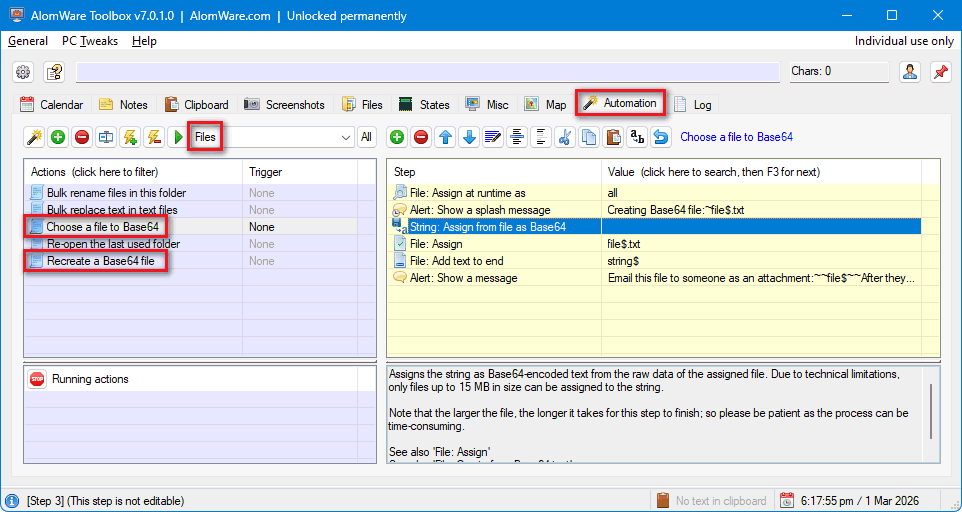
Did you know that AlomWare Toolbox can convert any small file (up to 15 MB in size) into Base64 text for sharing, such as by email? Just run the default action called "Files\Choose a file to Base64" as shown below. It will prompt you to browse for a file in a folder, and then puts a text version of that file in the same folder. Send the text file to someone as an email attachment, and they can use the default action called "Files\Recreate a Base64 file" to save the original file on their PC.


And guess what? You don't even need to attach the encoded file for the email; you can just include the text in the email's body. For example, copy the text below, and then run the action underneath it to save the file to your desktop. The file is safe: it's just a PNG image of AlomWare Toolbox's splash screen. :)

{File:iVBORw0KGgoAAAANSUhEUgAAAZoAAABBCAIAAABn6vVsAAAAK3RFWHRDcmVhdGlvbiBUaW1lAFN1biAxIE1hciAyMDI2ID
E4OjI1OjIzICsxMDAwbLwebwAAAAd0SU1FB+oDAQgaBD1E4IsAAAAJcEhZcwAACxIAAAsSAdLdfvwAAAAEZ0FNQQAAsY8L/GEFAA
AQCklEQVR42u1dWWsVyxbe53o8GESNEqeIU4KJCioqcSIO8UERgmhAwRdFCPjij/BHBHwUfVEUVFQQfXAmThhRQRxwxq1RiYkgRi
Vwvpu6Fuuu6q6u7q7evffO+iChu3dVdQ2rvlpr1dB/HThwoCAQCASVj7/xt3///ryzIRAIBKnQ1dX1n7zzIBAIBH4gdCYQCKoEQm
cCgaBKIHQmEAiqBEJnAoGgSiB0JhAIqgRCZwKBoEogdCYQCKoEQmcCgaBKIHQmEAiqBEJnAoGgSvB33hn4H7q6uuitbCMVCBgi+4
h0Im901tPT093dTZ+sWbNm2bJleRcwZxw6dOj79+/6tr29fc6cOZGxjh079uXLF3U9evTozs7OUaNG2aMUi8WTJ0/q27Fjx+7duz
fv0pcIrBv7wgikg0qHN2Pz2bNnkU9GIBoaGujthw8fIqMMDg5qLgN+//7d29sbGevjx4+W9woEIwF+6Ozr16+0ByrgCZ7nXcCcMX
nyZHrLSCcQZhiXWG/evLG8VyAYCfBDZ69evYr1fORg+vTp9PbTp0+RUUwNjlFVIFjK7L0CwUiAH99ZmF2J5yPcfTZx4sSxY8dq9x
ksx2KxWF9fb4li6mKRJAgtGCnrW7wR78276KWDi5NL3OQjAR60s0BLU0HszYLhxrJbjkNDQyZ5gars1cgUumnTpuVdaIEgB3igM2
ZRQjWw/DoCwdxYdr8+ftV61owZM/Rz+xwCs0Znz56dd6EFghzggc6Ypbl582bLryMQzI319u1bS2CquzU3N+tru/uMaXziOBOMTK
T1nTFLEwpFfX19XV2dfqjsTe+unGKxiB6ObgzTTKkzo0ePnjBhAnryvHnz7M4pCwYHB+/fv4+UBwYGkCzSnDJlCmhl4cKF7oEBuk
zMdJ9ZKkTrboiCdC5duqRuLSYqskGXtiEbNHG8C9mDcocU+vv7f/36pbU/vKKmpgY1Bv2R5dkvkMPHjx+jaMiDyqpuLCiSLgvx8o
JfMctIaCMxNDT09OlT9Wpd/5BVVD4Ee8yYMWWef3ekpTNmSyozp6mpiXIcwnikM9Tp7du3379/z56jfr8M49GjR+DTdevWWeo30D
Hc09Nz9+5d6lPH9fthPHz4EFonLUWswA0NDciVvgW5hFWI1t2mTZsGftEDA6QwjAQZ082aNUtfs0W8DN+HodK/fv16S0tL4LyNxY
kOkkI/UcINyd63bx+LCyJDY9Gym40FVm1rays3UvMiZhmlFgtoI7yaiYGWVcjw2rVrA0fr9Pk/f/78ixcvaPiOjg57AdlqcKCxsX
HLli2OhU1rbDJbcu7cufp/WJg0AImgtGa1MqB+EezmzZuOyWL4OnXqVHd3N6UnluDp06fROeMGVmDus8+fPwdGpBOUU6dOLfy/2R
jmPmN2qIqoYOEyBrwXJUK5UDqX8BC7Y8eOQXlEW6g8m7WBMIcPHza5jAGZPHfunHtjlQB+xSwjoY0EJBCEgjayiAFaDQGQwyzyj1
GKedIvXLhgETBkGAHoEzXUuRc5FZ0xSxP0rNQH/Mc1LaeX+U3UFNtHZce9e/euXr3qEvLMmTORrQWZuHz5Mmr8xIkTjoH1LXNmhR
ETfa5mJykPhpEgS42NJbGAct24cSMyGAZ8CG7YdLbC69evESaM8U2gsZBs4px7hF8xy05oI3H06FGmHIUBOUR7ec8/zFjmSUe/sA
gYugxjXkR3t4ULKY3NQEtTX/u1NyHrqCn6BMy9ZMkS9F6VMhgTHZvp1VANwAiRurSmp0WLFikvAMaQ3t5epmBDOAYGBnS5IgNr85
C5z5ACaNFsJ0pYjtoZXk3rmTnONGbMmIEWAUVOmjRJvRcZ6Ovrg2YH05iSDmps8eLFlsaCsEYqXCg4G2YxvCFZFMfSWDB4dYC84F
fMMhXaSOg0UflNTU30pU+ePGHtDirZtWsXk8n0+UfvQDehAoPrQIcp+JSRLyLGNb1T0RmzIufPn0+vaUWkXE+LvgdZp09gUW/atI
l53IHm5uaLFy/SekHEhoaGSI5HO2Eo0NWHlHG9devWI0eO0KZS3OEYGEKzevVqdQ0qobn6+PGj2aIvX75UF5A/VTSUCAylxC6QBN
myD+o4K/wRvkB3L57UDwMtdfz4cSrZNNsmIrmsMGxT0AQhl+vXr6cBdGNRvRhRbt265e4o8Q6/YlYCoY0EBGDlypWMGfFGtC845e
zZs7qZILf379+n7e4r/62traA8OuhCPPbs2cPqyhz/EDFueZMbm8zSZCvRlT6ib1Pam6B/2j1QVAh94EwcHuInumILERHdnj7CY2
gyhwKkBjpIHJg66dlaMHPhBZ2gpErZlClTAhMMfEIdZ8DevXsxith7BVqqpaXFnjcTIFmQVHt7e2dn5/4/UD9hSKeCYXIZrTE0Fp
LST9AlqM+xxPArZlkLbSSUoIZpeRBg1u4YxrLIP35lJid+pa6YwvCkAfNLIEqCqfbkdMYsTaqaBT5JvJ4W9hSraFY7JjZs2EBvEd
3u4YZiFdbn2Qp79D33wP39/fo60n1GiYm6zGiakds5k+0HYO42GNT28BDcnTt3gqSgYJpVAStGX2NIs4+xiM7kRKuoJYZfMSuB0E
Zi+/bt9pEMoy8dSzCaFovFLPKPIXPNmjX0V4xb2lWKC+aMRuBkPofkdMYsTXMlOnuSeH7z3bt3lLnRlyKLigBsrEAilvCWcaCmpo
beIin3wNTwNNVVJqyUmCj30Wv7dk6IZrJpflafdv/98uXL0U/CmoDp7OgwkWNspN5aGvgVsxIIbXqgadhYogXMe/5hJdBfC8MG6d
dhMJMWwRI7phLSmWlpmh0JT7zYm0wlcdzB46uTjB8/3ldgpjoxt5cuJnPn01hsOyfbeU7N0uxgcasVDB3cRVtkYSJ1w4zgV8zyFV
p3hO3AyyL/UN+oMgjRvXLlCnOzIgDT8mIh4VQAk9qwwwLZ8tFk85tMJZk0aZJLLBasr68vWUljGfD2wGhs6i5FY+sxgE5QMlaCva
BnRdmBHHFlTs3AwgQGZfz69Qt18vPnzx8/frgvT4sE42jmywsEM4jyojO/Ypav0LqjtraW3urKzyL/6Ptr167VG10KZEWBBgKkmd
pOSGfMcpw3b15gMDyndJZsfpN6oIAJEya4xGLBWCK5gLnPqMRQFjA1GjoriliazhwdZ2qPi16+n2kZGRkdPHgwbgpZ5zAMfsWsUo
SWEZBuvozyv3DhQght2Gq4xsbGlMtTktAZszQtLhtlb9L1Vgn2b0KPoLeO1h8LxhLJBWz1GbUcwxxnCtBxtARQ4qOEiFYIVIUC97
hkh7x0q/TwK2aVIrRMNdZjSXb5b2tr01tHKSDAsTYABCIJnTFLE1Xg/u2JBPYmG64drT8WLK8xn4HqWXQvOiWmQO1MX+tNnWznOU
xUs2bMTXNZo0zqOX3OU4pZpQttdvkHgYK2zp07x57H3QAQiCR0lmYP5gg/n5a5zzS5a00N6pvZqFTt0iTIvBsmCd68eTOQy+rq6q
AAjhs3Di+qra2tqanBoJrAKhQIPOKff/5Jn0hsOrOcPeuCBPamXhavMDQ05DJWsGUQdEolRzBDUlmOxWJRFzDQ/0WP1ij8OZDDfm
QjKpltTykMr2i1b2Dyjgo6w9qvmFWK0JY+/7Aq2BpahQsXLpi7rOIi9kKN9KfLxk2B0fa3b99cYrFgXrg/PdjqM6VhUT0rbCqQ8q
Da2smmNVlEtgYSgtXR0bF+/fqsuYydoJDjEv+48CtmlSK07I3al59d/s195grs1IZkiK2dMUvT5Tu4r1+/pqZyXHsTBhEt/8DAgE
ufZD5pNiGdI6j7TJ1iZp/WVKDrg16+fNna2spOzWSDJ9PdWlpaSnO6Hmusvr6+cjjVL0HOU4pZpQgte6Oms4zy//jxY4szV20VSD
O5GU87M+c0Z86cGRkLYajaGXc9LevhLl/eNYM5LpwpAZhVqM6Jjcwn1c4gZ0+fPrVUUcEQrPTHMziC5d/lC6FlAr9iVilCG6bjZ5
F/cwNAXV1d4FaBxMWJR2fMTpw1a5aLRY0w7KSHWPYm8zc5LpVmHal8vgbCigNioge5hPkO1NEa+pbuiywEre1gk0rp54wc4WtnW+
nhV8wqRWhZxvTu3Szyf+XKFbYBYPPmzYFbBRIXJx6dRe7TDEMaKTeVO71RNgwIQBccO2qRpQFzn9F82j9ZQncLsNkYs3TMC5tyM7
M75syZwxqrTA5ljIRfMasIocUbA49f9ZV/6obq6elhewDUBgC1VYA+RzD76bgWxKAz09KknxqyAyET25tQ7hYvXkyfXLt2zdI/8R
MC0Cfz58/P7rseCeDiIHOPpQ9Ho2Drsy2bmVFd58+f91g61lgwHyJ7goY6s9tjZtzhV8zKX2jNN9IMe8m/vkZnZ0fawsbUDhBcND
Y20l8ROJnJGYPOklmaunbYVsRY9ubSpUsZG545cyawcvHw4sWLjHZXrlyZoGqyQ5hWa9fOwn4NfM4e3rp1K7C6QB8nTpzwu9R2xY
oVVP2E+XD27NlIHQ05AatGntmdKfyKWe5CaxlFBgcHkRmmmjEHq6/841d2NCN+ZYd0trW1MXvC/lWBMMSY2UxsaSpAQaPaZqz5zT
FjxpibV48cOcLO+QVFPnjwgE0DI2LJPEeOCCSgsHOxNcK0s8CGwNBKd8tC1EBbq1atQiKoDbUX/fnz5y5Hy8aFOq6Pfo9HfV/j4c
OHTU1NgQd8AzmymIZfMctdaNEE6lhtWueBJ2sD69aty6g2bty4wRrX3ACgvipA1z8gyp07d+zHt5hwpTNz9WzYKRphQHhaNXHX02
LoGBgYoEtDUYPdw7DEWrRoUckm9dzBNm8qRB7vQ4/WoAikObwCCjxVu1Dh5s4SBbpG1wvq6+vb29vZ69QXzPzXplf4FbPchdaxzj
du3Bi4niZ9/qEhsiETYhm4tAsP2VcF8F4M1bEW+rgam8w2hOkbd/RAeDYpG3c9Lah6+fLl7uEROOxY59xhcpDLrLwZyzIZCgWefk
8rDBCvHTt2eC8gpLOjo4OtqnVB7vs3/IpZ+QstuMzCnmnyH/dDc62treaH7GKtxHals5SWZmCsBLP4qFx0ksheigAIFldTLSUiD+
8NhLlnwOJuA81t27aNOVkpIDoQ5bAD4NMD4+ru3bsh344MhdEO+ens7MwiM7HgV8xyEVrVuPaXqjdGaoKJ8x/3Q3PmVwXibhX468
CBAxW0sU4DSuzz588/fPgAZbg8vy9fPkBdPXjwQJ/KAkGvra1tHkZpJnyHhobevXv35s2bvr6+/v5+LeK6ySZPnuzlw0VZVJ1HMc
tFaM2Xgnfw0gULFsT98nyZd7qurq5KpTOBQCCgAJ2l+gq6QCAQlA+EzgQCQZVA6EwgEFQJhM4EAkGVQOhMIBBUCYTOBAJBlUDoTC
AQVAmEzgQCQZVA6EwgEFQJhM4EAkGVQOhMIBBUCYTOBAJBlUDoTCAQVAn+exptV1dX3tkQCASCtPgX6hSpteAflFUAAAAASUVORK
5CYII}

Use this action to decode and recreate the above file on your desktop:

(Start)
HOW TO USE: Copy from Start to End, and then paste into an action.
REFERENCE : See an example of pasting at alomware.com/paste.png
0001 String: Assign from clipboard text ""
0002 File: Assign "desk$\AlomWare Toolbox.png"
0003 File: Create from Base64 text "string$"
0004 Alert: Show a message "The original file has been recreated:~~file$"
(End)
#40
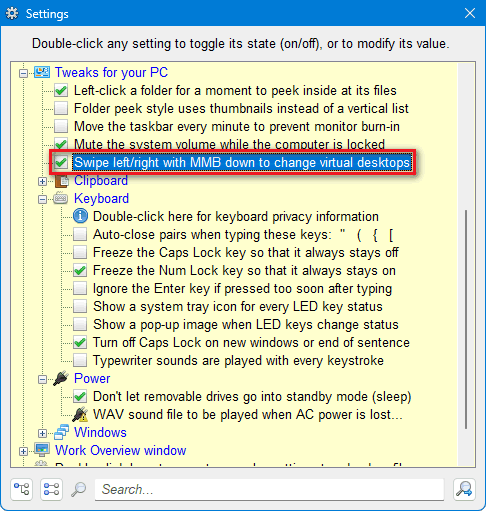
If you use virtual desktops with Windows, you normally switch between them with the built-in Ctrl+Win+Left or Ctrl+Win+Right hotkeys. But with AlomWare Toolbox, there's a tweak in its Settings that lets you hold down the middle mouse button and then move your mouse left or right to switch desktops. It's very intuitive and much better than reaching for the keyboard to switch.