News:

Welcome to our NEW forum! We invite you to sign up today
so it can grow to be a valuable resource to all Toolbox users!

Main Menu
Menu

Show posts

This section allows you to view all posts made by this member. Note that you can only see posts made in areas you currently have access to.

Show posts Menu

Topics - Paul (Lead Developer)

#41
Tips and Tricks / [Tip] Auto-close annoying windows
February 19, 2026, 01:01:52 PM
It's annoying when an app opens a window that you never want to see, and if there's no option in the app to prevent it, then what can you do? Suffer every time it opens? No, just use AlomWare Toolbox to auto-close it for you!

For example, FileZilla is an app that pops up a window whenever a new update is available. There's an option in the app to never check for updates, but for this example let's pretend there isn't. Here's the "annoying" window that we never want to see:
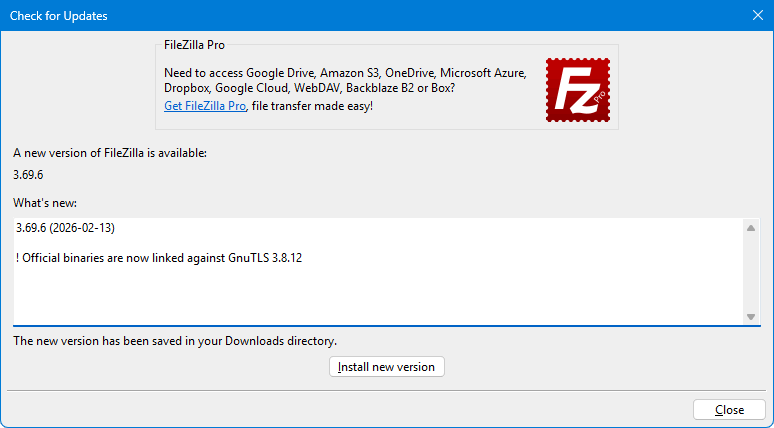


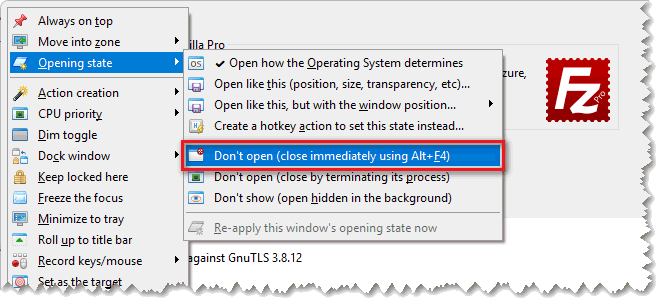
To make AlomWare Toolbox auto-close it whenever it opens (so we don't have to do it manually), middle-click the window's icon area (top-left of its window) and select "Opening state > Don't open (close immediately using Alt+F4)":


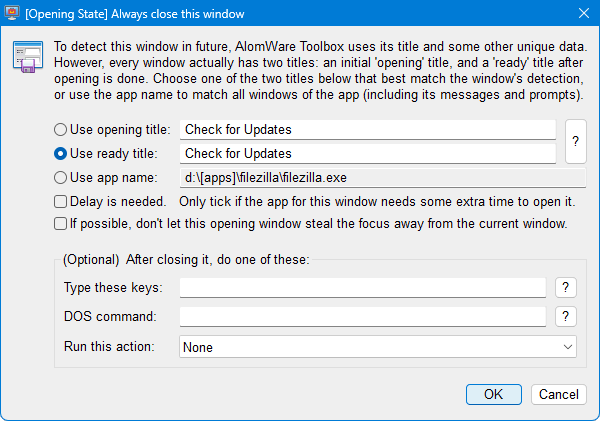
You will then be shown a confirmation dialog, and the default settings are fine so we just click the "OK" button:


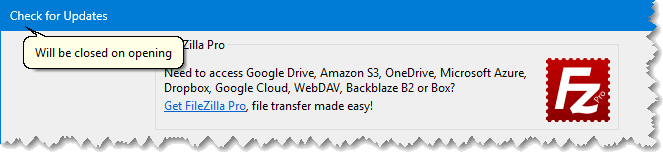
AlomWare Toolbox shows a balloon tip to confirm the new opening state:


Now whenever that window pops up in future, AlomWare Toolbox auto-closes it with an Alt+F4 keypress. Awesome!

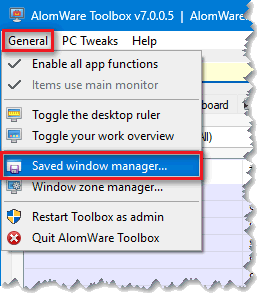
But what if we don't want this auto-closing to occur anymore? How do we remove the auto-closing rule? Easy! In AlomWare Toolbox's window, click the "General" menu and then the "Saved window manager" item:


You'll then get a list of saved windows, so just select the one we want to remove, and press the Delete key:
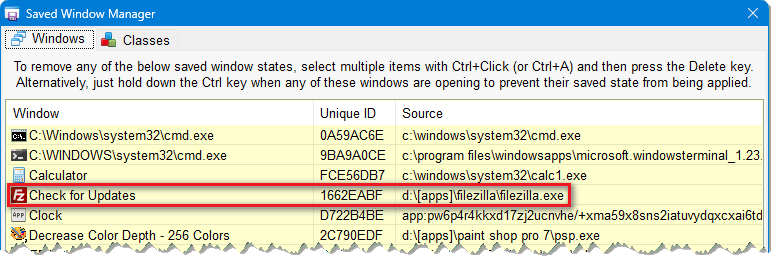


And that's it! An easy way to auto-close unwanted pop-up windows from any application. :)
#42
If you have a lot of actions with hotkeys, you may struggle to remember which hotkeys you've set. So, did you know that you can filter your actions by trigger type? The action below will filter the action list to show only actions that use a hotkey (because /hk in step 1 is the filter type for hotkeys).

(Start)
HOW TO USE: Copy from Start to End, and then paste into an action.
REFERENCE : See an example of pasting at alomware.com/paste.png
0001 Toolbox: Filter action list with "/hk"
0002 Toolbox: Show the tab named "Automation"
(End)

You can also filter actions by changing /hk in step 1 to one of these:

  • /cl for clipboard triggers.
  • /to for toasts (notifications).
  • /ty for typed triggers.
  • /any for any trigger type.
#43
Did you know that AlomWare Toolbox lets you search its screenshots by OCR'ing the text in them? Here's an action that lets you specify some text and then filters the screenshot list by that text. You may find it handy to assign this action to a hotkey.

This action will be part of the default actions of AlomWare Toolbox from the next update. :)

(Start)
HOW TO USE: Copy from Start to End, and then paste into an action.
REFERENCE : See an example of pasting at alomware.com/paste.png
0001 Action: Allow failure messages "0"
0002 Alert: Ask for a line of text "Specify the text to find in your screenshots:"
0003 Toolbox: Filter screenshot lists with "ocr=alert$"
0004 Toolbox: Show the tab named "Screenshots"
(End)
#44
Solutions / Emptying a Folder in 1 click
February 09, 2026, 11:30:31 PM
Question: https://www.geekstogo.com/forum/topic/377141-emptying-a-folder-in-1-click/

"Is there a software out there that can empty a specific folder in just 1 click? No questions ask just delete all its contents in just 1 click."

AlomWare Toolbox solution: Since the user wants to delete a specific folder every time, he could use the action below to do it, either manually by double-clicking the action in the Action list, or by assigning the action to a hotkey trigger. Nothing is seen when this action is run; it just does the permanent deletion immediately in the background.

As you can see, the folder is specified in step 1, and step 2 does the deletion. Note that the folder is deleted even if it's marked as read-only, so use this action with care! :o

(Start)
HOW TO USE: Copy from Start to End, and then paste into an action.
REFERENCE : See an example of pasting at alomware.com/paste.png
0001 Folder: Assign "c:\folder\to\be\deleted"
0002 Folder: Delete ""
(End)
#45
Solutions / Program to simplify a repetitive task
February 09, 2026, 11:16:39 PM
Question: https://www.bleepingcomputer.com/forums/t/748691/program-to-simplify-a-repetitive-task/

"It seems a good part of my workday is spent clicking the various print windows over and over. Surely there must be a program or macro to simplify this task. I have tried a few programs, Autohotkey, (seemed to be a little to advanced for me), and a couple others but so far no luck."

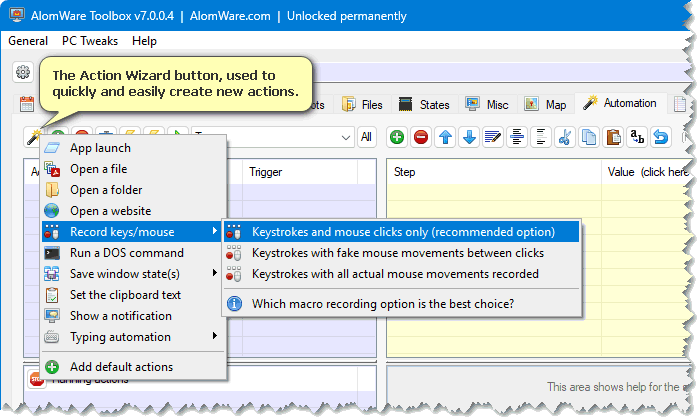
AlomWare Toolbox solution: The app was made for this! Unlike AutoHotkey's horrible and unfriendly text-based coding, just start AlomWare Toolbox's macro recorder by clicking the "Action Wizard" button in the "Automation" tab, and choose "Record keys/mouse > Keystrokes and mouse clicks only". A message is shown and recording starts one second after you close it.

The user above would then click the various window points desired, and when done, press the Ctrl key three times to stop recording. This macro can then be assigned to a hotkey trigger to play back the mouse clicks when needed, thus solving the user's repetitive task. :)

#46
Question: https://www.tenforums.com/general-support/221904-where-i-can-get-same-caps-lock-off-seen-screenshot.html

"Does anybody know where i can get the same Caps lock on off on screen display software as shown in the screenshot? I have it on my computer, but i have no clue where i got it from! I have looked in all my harddisc folders for the program, but never seem to find it!"

AlomWare Toolbox solution: The app has its own Caps Lock (and Num Lock / Scroll Lock) indicators, which can be shown in the system tray or as a pop-up image in the middle of the desktop. If your laptop doesn't have Caps Lock or other LED key indicators, then AlomWare Toolbox is your new best friend. ;D


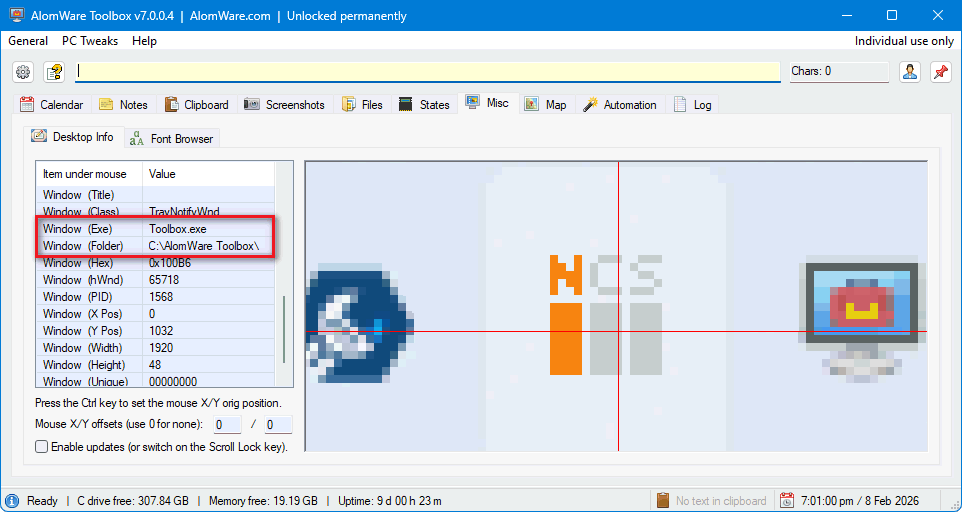
However, let's look at the user's question a bit closer. The user wants to identify the app used, because he has no way to know what it is. Under AlomWare Toolbox's "Misc" tab is another tab called "Desktop Info". If you enable updating of stats in that tab, you can hover the mouse over anything on your desktop to get info about it (such as color picking, text copying, window info, and app identification). So as an example, if we hover the mouse over AlomWare Toolbox's icon, we can see that it belongs to an app called "Toolbox.exe" which is located in the "C:\AlomWare Toolbox" folder. The user at top could do this same process with his unknown Caps Lock app to discover which app it is.

#47
Question: https://www.elevenforum.com/t/how-to-keep-all-notifications-in-windows-11.44371/

"in Windows 11 I have enabled all notification permissions, allowed apps to access notifications, and turned on the sliders for system apps, yet some notifications disappear immediately after appearing and are not stored anywhere. I have also tried tools like Notification Logger, but the situation hasn't improved. Is there a reliable way to ensure that all notifications are retained?"

AlomWare Toolbox solution: The app has a setting to auto-snapshot every notification as they appear, so you can later view what they looked like at the time. The setting is here:


The auto-snapshots of them are found in the Screenshots tab for later perusal (see below). You can filter the screenshots to show only notifications by specifying "Notification - " as the filter text. When filtered, you can bulk-delete them by selecting them all with Ctrl+A and pressing the Delete key.

#48
Did you know you can open RegEdit at a specific location with a hotkey (or other trigger)? Let's say you often like to open this Registry location:

HKEY_CURRENT_USER\Software\Microsoft\Windows\CurrentVersion\Explorer\Advanced

To open RegEdit there without navigating to it manually, just use an action like this:

(Start)
HOW TO USE: Copy from Start to End, and then paste into an action.
REFERENCE : See an example of pasting at alomware.com/paste.png
0001 String: Assign "HKEY_CURRENT_USER\Software\Microsoft\Windows\CurrentVersion\Explorer\Advanced"
0002 String: Do activity from its text ""
(End)

This is because the "String: Do activity from its text" sees the "HKEY_" part and knows to open RegEdit with the full string.
#49
Help and Support / Got questions? Ask the creator!
January 31, 2026, 02:27:02 PM
Hi everyone! I'm Paul, the lead developer and creator of AlomWare Toolbox.

If you have any questions about the app, such as how to make it do something in a more simpler or convenient way on your PC, then please post in this forum area and ask. Don't just assume the app can't do what you want, or that it may be too hard to make it do something. For paid users, I'll often write a custom automation action for them when they just can't work out what to do.

Asking for help here is the best type of tech support you can get: there's no annoying tickets to create, and you'll receive help directly from the person who knows the product inside-out (as opposed to an uninterested worker just reading from a script).

So, please let me hear what concerns you because I'd really like to know and assist. Don't be shy! ;)
#50
Solutions / About this Solutions area
January 30, 2026, 09:34:05 PM
In addition to our Tips & Tricks area, this read-only forum area is used to show why AlomWare Toolbox is the perfect solution for computer questions asked online by users just like you. Hopefully what you see here will convince you that AlomWare Toolbox is must-have software for your PC! 8)
#51
Solutions / How to set custom folder view for 1 folder
January 28, 2026, 07:55:35 PM
Question: https://www.tenforums.com/general-support/149268-how-set-custom-folder-view-1-folder.html

"I have the folder view for all my folders to be "Large icons." But I have one folder where I want "Medium icons" view. And I set it on Medium view, but then every few hours or days it goes back to Large icons. And I'm not sure what causes it to happen. But what causes it to happen doesn't matter. There has to be a way to make it fixed, set, no change, stay the way I set you forever. Some registry edit or some 3rd party program or some method has to exist."

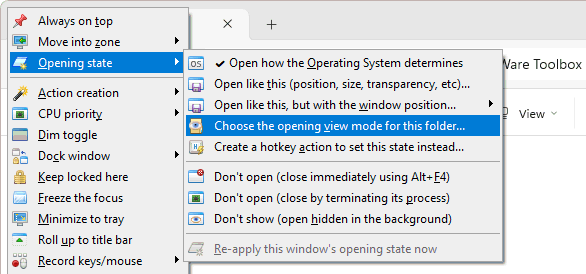
AlomWare Toolbox solution: You can set an opening folder view for any folder by middle-clicking the folder's icon area to show the Power menu, and then navigating to "Opening state > Choose the opening view mode for this folder" per below:


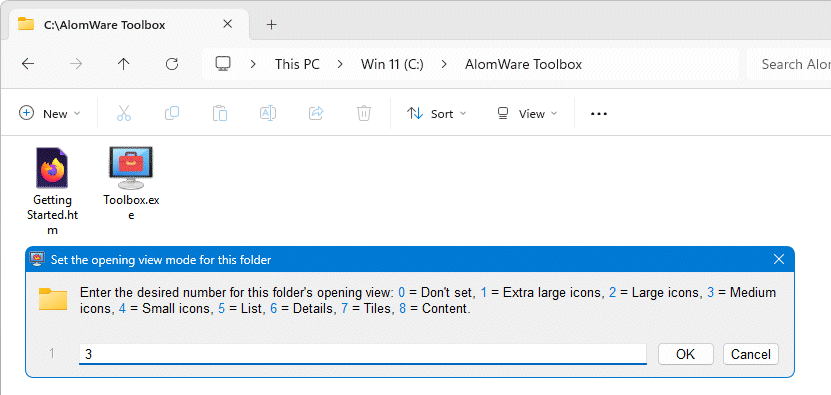
Then, you are prompted to enter a number for the relevant desired view type. For the question asked, you'd enter "3" to set the folder to always open in "Medium icons" view:


Then click "OK" to set it. To remove the set view, repeat the steps but enter "0" for no view setting.
#52
Reddit post: https://www.reddit.com/r/Windows11/comments/13fk73e/am_i_the_only_one_being_driven_mad_by_the/

"I wouldn't mind enabling them one-by-one if it actually worked, but some applications (like Google Drive for example) hide themselves again after every update (the taskbar thinks they're new apps every time they update!) - making it impossible."

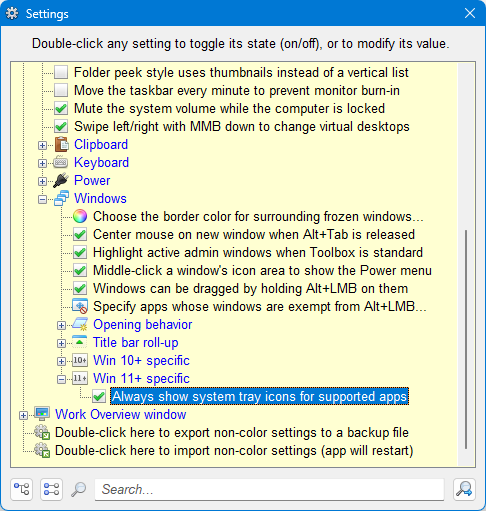
AlomWare Toolbox solution: The app has a PC tweak to show all system tray icons at all times:

#53
Reddit post: https://www.reddit.com/r/software/comments/1pz77tj/what_desktop_app_would_make_your_daily_life_a/nwp51kw/

"I wanna be able to hit a shortcut and start typing the title of a window or tab I know is open then select it from the options that appear. Window switching is too cumbersome in windows 11."

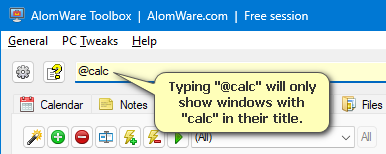
AlomWare Toolbox solution: You can press the app's main hotkey and then type "@" followed by some text that matches a window title. So to quickly switch to Calculator, just type "@calc" in the Command box as shown below.


Nice recommendation from a kind Redditor there, too.
#54
Reddit post: https://www.reddit.com/r/software/comments/1qmzlwa/im_looking_for_a_program_similar_to_this_one/

"you could right-click on any program or file and use the program I'm looking for to completely delete everything"

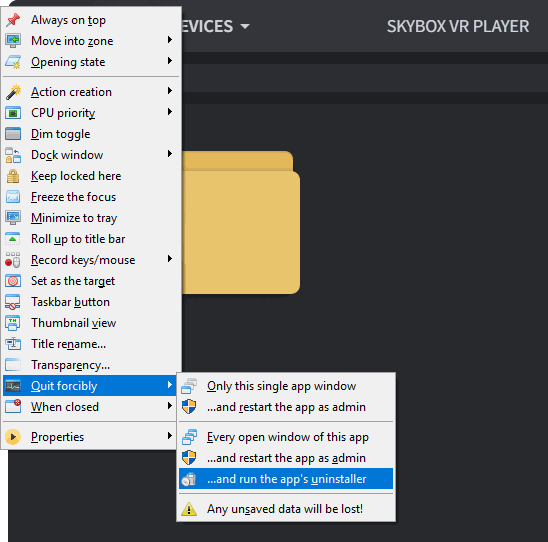
AlomWare Toolbox solution: If you want to uninstall an app that's running without manually navigating to the Control Panel to do it, just middle-click the window's icon area and select "Quit forcibly > ...and run the app's uninstaller" from the Power menu that appears. This terminates the app instantly (just like a force quit on the Mac), so make sure any unsaved data in the app is saved first.

For apps where their uninstall file can't be found or is missing, AlomWare Toolbox will fall back to opening the Control Panel uninstaller for you instead.

For example, say you're testing "SkyBox VR Player" but decide you don't want it. Here's a screenshot of middle-clicking SkyBox's window icon to quit and uninstall it in a few clicks:


Bonus function: As you can see from the screenshot, you can also use the Power menu to force quit any app and restart it with admin rights. 8)
#55
Solutions / Copy current time or date shortcut
January 24, 2026, 10:39:18 PM
Reddit post: https://www.reddit.com/r/Windows11/comments/1ph2k2v/copy_current_time_or_date_shortcut/

"It would be great to be able to copy the current Time and date, just by left click and hold on top of the task bar time anda date And also be able to choose, to whether copy only the date, or only the current time, or both by doing it."

AlomWare Toolbox solution: Here is an action that you can set to a hotkey. When the hotkey is pressed, it pops up a selection of time/date options, which you then select with up/down arrows and press Enter to copy the selected item to the clipboard. You could also set this to pop up from a typed text trigger instead of a hotkey (such as by typing "/dt").

Note in step 2 how the line ends with a "¬" character; this means AlomWare Toolbox will continue it with the next line in the action.

(Start)
HOW TO USE: Copy from Start to End, and then paste into an action.
REFERENCE : See an example of pasting at alomware.com/paste.png
0001 Action: Allow failure messages "0"
0002 Alert: Ask for a choice "Select a time/date copy option:~date$ at hh12$:ii$:ss$ ap$~date$ at h¬
h$:ii$:ss$~date$~hh$:ii$:ss$~hh12$:ii$:ss$ ap$"
0003 Clipboard: Assign text "alert$"
(End)

Screenshot when you press the hotkey for this action:

#56
Reddit post: https://www.reddit.com/r/Windows11/comments/1plh3hh/tiling_window_manager_with_pinninglocking_window/

"I want the ability to LOCK the size of a window, so closing or opening new windows won't change the size of the "pinned" window. I want this mainly so I can have a music player open and always keep it at minimum width"

AlomWare Toolbox solution: There's two ways to lock a window's size and position. The first is with a hotkey toggle on the active window, using this action:

(Start)
HOW TO USE: Copy from Start to End, and then paste into an action.
REFERENCE : See an example of pasting at alomware.com/paste.png
0001 Action: Allow failure messages "0"
0002 Window: Assign active ""
0003 Window: Lock in place "toggle"
(End)

The second way is to middle-click the icon area of the window to lock, and select "Keep locked here" from the Power menu that appears. That window can no longer be moved or resized (but it can be minimized). To unlock, repeat the steps but choose "Kill locked state" from the Power menu instead.

#57
Solutions / Per-app volume control on the taskbar
January 24, 2026, 08:07:49 PM
Reddit post: https://www.reddit.com/r/Windows11/comments/1qc3f2b/new_in_windhawk_perapp_volume_control_on_the/

"Don't you think that opening the Windows volume mixer is a bit of a hassle? Control the per-app volume by scrolling over taskbar buttons with this new mod!"

AlomWare Toolbox solution: No, it's not a hassle to change an app's volume level with AlomWare Toolbox! :) One of our savvy users (Bazza) posted a way to change the volume of the active app simply by pressing a hotkey and where the mouse was vertically on the desktop. If the mouse was at the top, the volume for that app would be set to 100%. If at the bottom, mute. In the middle, 50% volume. You get the idea.

Unlike what is mentioned in the above Reddit post, there's no tweaks or mods to install and no damage risks to your PC by editing the Registry. All cleanly done by the portable nature of AlomWare Toolbox, and you don't need to click or scroll over anything to change the volume.

The link to Bazza's post: https://www.alomware.com/forum/index.php?topic=15.msg108#msg108

Thanks for the tip, Bazza! 8)
#58
Solutions / CP isn't useful as it was years ago
January 24, 2026, 07:56:33 PM
Reddit post: https://www.reddit.com/r/Windows11/comments/1qcj4v6/cp_isnt_useful_as_it_was_years_ago/

"previously the control panel had a lot of options, now it only has few, i dont think it should exist as most of its options are in settings, it should be deprecated soon"

AlomWare Toolbox solution: This user lamented the fact that the Control Panel isn't as accessible anymore as it was in the past. AlomWare Toolbox is proud to have all the Control Panel items in its "PC Tweaks > Control Panel items" menu for you! It also has a menu item to open the "All Tasks" folder without having to create the "GodMode.{ED7BA470-8E54-465E-825C-99712043E01C}" folder on your desktop.

#59
Reddit post: https://www.reddit.com/r/software/comments/1ppop1b/whats_one_piece_of_software_that_you_wish_existed/nuozmz0/

"A knowledge base where i can just dump ideas, plans and references without having to organzie and categorize everything"

AlomWare Toolbox solution: The app was literally made for this. :) Let's see some examples why:

  • Press AlomWare Toolbox's hotkey to make a quick note (no matter which app you're using at the time).
  • Cut or copy any text or image, and it's saved in the clipboard history until you need to view or copy it again.
  • Press PrintScreen to take a screenshot and the URL, app, document or folder info is saved for re-opening later.
  • Screenshots with text in them can have that text copied to the clipboard via OCR when you right-click the image.
  • AlomWare Toolbox has a Snipper to grab images of the desktop to keep on top for reference when using other apps.
  • Snips are unlimited (unlike the Windows Snipping Tool) and can be transparent with the mouse wheel to see underneath.
  • Plus lots more.

All clipboard items, notes, and screenshots can be searched from either their title box or from a hotkey with filter text. This means you can, for example, show only screenshots taken of a specific website, or of a specific app that was running.
#60
Reddit post: https://www.reddit.com/r/software/comments/1pplg3c/simple_software_where_i_can_map_sounds_sound/

"I need a simple one for a party. One that a nontechy person can manage. The plan is I map the sounds, and my uncle presses the keys on party day"

AlomWare Toolbox solution: Use actions bound to different hotkeys to play the sounds/media. Here's an example action:

(Start)
HOW TO USE: Copy from Start to End, and then paste into an action.
REFERENCE : See an example of pasting at alomware.com/paste.png
0001 Computer: Play media file "c:\sounds\cheer.mp3"
(End)

How it looks in AlomWare Toolbox to play it with a hotkey (Shift+Ctrl+Alt+C in this example):