News:

Welcome to our NEW forum! We invite you to sign up today
so it can grow to be a valuable resource to all Toolbox users!

Main Menu
Menu

Show posts

This section allows you to view all posts made by this member. Note that you can only see posts made in areas you currently have access to.

Show posts Menu

Topics - Paul (Lead Developer)

#61
Reddit post: https://www.reddit.com/r/software/comments/1qbx6hs/any_program_that_lets_you_easily_overlay/

"Seeking for any programs that let you overlay a picture/whole tab if possible onto the screen and change their transparency."

AlomWare Toolbox solution: Use the "Image: Show at desktop position" step with an image. There's a built-in action that does this ("Web\Show street camera image"), replicated here:

(Start)
HOW TO USE: Copy from Start to End, and then paste into an action.
REFERENCE : See an example of pasting at alomware.com/paste.png
0001 Image: Assign "https://cameras.qldtraffic.qld.gov.au/Gold_Coast/nerang-gooding-east.jpg"
0002 Image: Resize to "640,480"
0003 Image: Show at desktop position "numpad5"
(End)

Screenshot of the action when running:

#62
Reddit post: https://www.reddit.com/r/software/comments/1ql2ip3/seeking_software_win11_to_make_mouse_cursor_blink/

"I use some browser and email extensions that copy text when selected, but sometimes it does not work. It would be handy to be able to configure my mouse cursor to give me some sort of visual feedback (such as flashing, temporarily changing the cursor somehow, or briefly displaying a custom text tooltip next to the cursor) anytime a Copy operation occurs (so that I know it succeeded)."

AlomWare Toolbox solution: The following action shows a balloon tooltip at the mouse whenever the clipboard text changes, along with the first 50 characters of the new clipboard text as a confirmation reference.

(Start)
HOW TO USE: Copy from Start to End, and then paste into an action.
REFERENCE : See an example of pasting at alomware.com/paste.png
0001 Wait: For variable to change "clip$"
0002 String: Assign "clip$"
0003 String: Get first chars "50"
0004 Alert: Show a mouse message "Clipboard text is now: string$"
0005 Action: Go to start ""
(End)

Screenshot of the action when running and the clipboard text is changed:

#63
Announcements / Please review us at Trustpilot
January 02, 2026, 08:06:51 PM
If you're a happy user of AlomWare Toolbox and haven't done so already, then I'd ask you to please leave a positive review at Trustpilot about it.

The link: https://www.trustpilot.com/review/alomware.com

Just be aware that Trustpilot themselves might not trust your review to be legit (the irony!) and may initially reject it without proof of payment or relationship with AlomWare. Whether you want to provide proof (such as our license email to you) is up to you.

Thank you! :)
#64
Other apps that look at items under the mouse suffer from a flaw: clicking the mouse when looking at something (such as to bring it to the front) can close the item, which is annoying. Not with AlomWare Toolbox!

Just press the "Scroll Lock" key when you're in the "Misc > Desktop Info" tab, and you can see stats for what's under the mouse at all times, even if you click it or start working in another doc. To "lock" all current stats so they don't get lost when you see what you want, just press "Scroll Lock" to turn off tracking, and then you can scroll the list and double-click any stat to copy it to the clipboard.

#65
Tips and Tricks / [Tip] Using the "Temp Tasker"
December 07, 2025, 12:43:57 PM
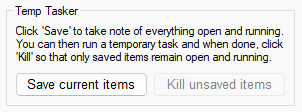
Has anyone tried the "Temp Tasker" feature in the "States" tab yet? Click the "Save current items" button in it for AlomWare Toolbox to remember which apps and processes are running, and then you can launch other apps to do something temporarily. When you're done with those apps, click the "Kill unsaved items" to terminate them all in one go.

For example: Click "Save current items" now, then open a few Notepads and other apps like Calculator. Then click "Kill unsaved items" and all those Notepads and apps are instantly gone! :)

An alternate use is to "lock" your PC's app state before walking off, and when you come back you can click "Kill unsaved items" so that the only processes running are those which were running when you left it. If anything started in the background while you were away, they get zapped away.

#66
Announcements / Welcome to our new forum!
December 05, 2025, 09:34:31 PM
This is our new forum relating to all things AlomWare Toolbox. As you can see, it's pretty empty right now, so don't be shy; let's start talking about what you're doing with the app, or support you with it, what useful actions you've created, and so on. I'd love to hear from you! :)