News:

Welcome to our NEW forum! We invite you to sign up today
so it can grow to be a valuable resource to all Toolbox users!

Main Menu
Menu

Show posts

This section allows you to view all posts made by this member. Note that you can only see posts made in areas you currently have access to.

Show posts Menu

Messages - Paul (Lead Developer)

#16
Feature Requests / Re: Action list
October 12, 2026, 08:18:39 PM
Thank you both for your kind words. I truly appreciate the... appreciation. ;D
#17
Good catch! I just added this for the next update, but it'll only work if AlomWare Toolbox is run as admin because the Task Manager is admin.
#18
Feature Requests / Re: Action list
October 09, 2026, 09:22:26 AM
I made a typo in the URL that I emailed you. Put a dot instead of the slash before "com". ;D
#19
Feature Requests / Re: Action list
October 08, 2026, 11:06:29 PM
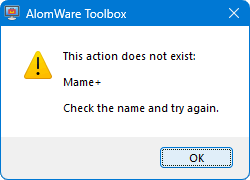
Indents are not done deeply when copying an action's text, by design. This is to save whitespace when pasting to places like here, because the aim is just for someone to copy the text for pasting into the app, where it'll appear indented nicely. I'll see about suppressing the "Search" part of the "Alert: Ask for a choice" step.

BTW, in the update of the app I emailed you, you can now replace step 1 like so:

Old:

0001 Folder: Assign "C:\[Tim]\[Toolbox]\Toolbox Data\Actions\My Useful Stuff"
New:

0001 Folder: Assign "tooldata$\Actions\My Useful Stuff"
#20
Bug Reports / Re: Missed event notifications
October 08, 2026, 07:13:15 PM
Hehe. I thought so. 8)
#21
Bug Reports / Re: Missed event notifications
October 08, 2026, 06:57:49 PM
I just realised that I never marked this topic as "[Fixed]", but it is now, yes? After our emails and reminder updates.
#22
Bug Reports / Re: Actions getting kind of lost
October 08, 2026, 06:51:48 PM
Ah, I see. Bug confirmed: the action is not found after moving groups. Fixed for the next update (check your email to download the fix).

#23
Feature Requests / Re: Action list
October 08, 2026, 05:35:00 PM
Haha! :) If it's a hotkey that uses more than one character (so not just "/" or such), then you could make it list only actions with those type of hotkeys:

(Start)
HOW TO USE: Copy from Start to End, and then paste into an action.
REFERENCE : See an example of pasting at alomware.com/paste.png
0001 Folder: Assign "C:\[Paul]\[Toolbox]\Toolbox Data\Actions\Windows"
0002 Folder: Start of file processing ""
0003  File: Assign "folder$name$"
0004  String: Assign from line number in file "1"
0005  Action: Do next step if "stringlen$>1"
0006  Data: Add "name$ = string$~"
0007 Folder: End of file processing ""
0008 Alert: Show a message "data$"
(End)
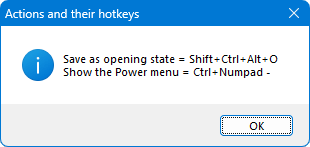
Then you get this:

#24
Help and Support / Re: Clear all hotkeys
October 07, 2026, 09:03:04 PM
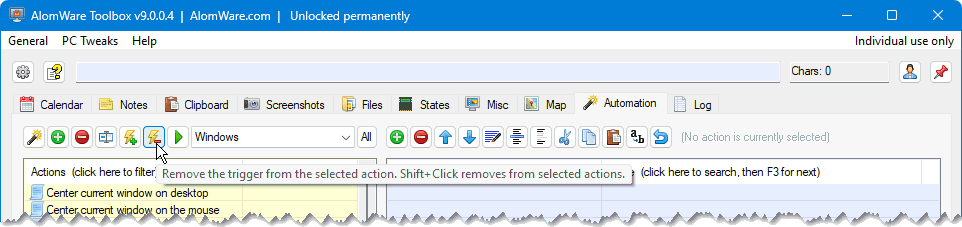
Hi Xoannon. Select all actions by pressing Ctrl+A in the Action list, and then hold down the Shift key when clicking the "Remove trigger" button:

#25
Feature Requests / Re: Action list
October 07, 2026, 08:27:32 PM
Hi Oblivion. Here's what I think you want? Try this action, but replace the Action path and group in step 1 to where your "Toolbox Data\Actions" is located. I guess I should add a variable called "tooldata$" for the next release, which points to the "Toolbox Data" folder. ???

(Start)
HOW TO USE: Copy from Start to End, and then paste into an action.
REFERENCE : See an example of pasting at alomware.com/paste.png
0001 Folder: Assign "C:\[Paul]\[Toolbox]\Toolbox Data\Actions\Windows"
0002 Folder: Start of file processing ""
0003  File: Assign "folder$name$"
0004  String: Assign from line number in file "1"
0005  Data: Add "name$ = string$~"
0006 Folder: End of file processing ""
0007 Alert: Show a message "data$"
(End)
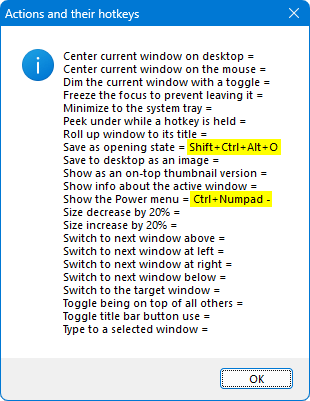
Running this action will show a message of all actions from the group in step 1, with their hotkeys (if any) like below. Yellow highlights added by yours truly. ;)

#26
Feature Requests / Re: Unavailable hotkeys
October 07, 2026, 08:04:05 PM
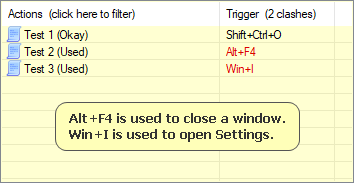
Hi Oblivion. Hotkeys are assigned when the app starts and any that are unavailable are shown in red (see mock image below). Once successfully assigned (not red), no other third-party app can unassign them (except for the OS itself). Sometimes a hotkey that used to work in Toolbox may no longer be available when Windows steals it for itself with an OS update, which I suspect is what happened to you. Which hotkey was it?

You can always refresh the Action list (which unassigns all hotkeys and reassigns them again) by holding down the Ctrl key when clicking the Action list header. This will make any "bad" hotkeys show in red, along with a clash count in the list header. Tip: You can filter the Action list to show only action that use hotkeys by setting /hk as the list filter.

#28
One annoyance of Windows is that the CMD prompt (or DOS/Terminal prompt) normally opens as a big rectangle randomly somewhere on the desktop, and doesn't stay on top of all other windows when using it. It's also not transparent, so you can't easily see what's under it, resulting in you having to move it with the mouse (or minimize it) to see things underneath. All this is counter-productive to your work. :( There must be a better way, and there is!
AlomWare Toolbox has a window opening state called "As a reference strip", which means to position the window across the entire width of the bottom quarter of the desktop, with slight transparency, and remain on top of all other windows. The extra width means that DOS or PowerShell commands will now show their output text in a longer row, resulting in less horizontal scrolling (or even none) by you with the mouse to read it all. Nice!

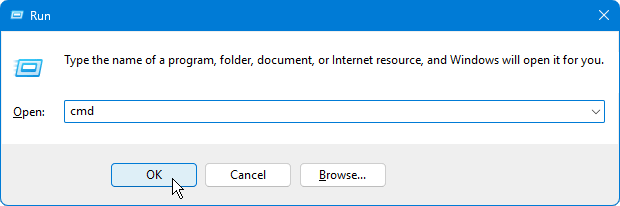
So how do we set the CMD/DOS/Terminal prompt to always auto-open this way? First, open the prompt by pressing Win+R and typing "cmd" and pressing the Enter key (or clicking "OK"):


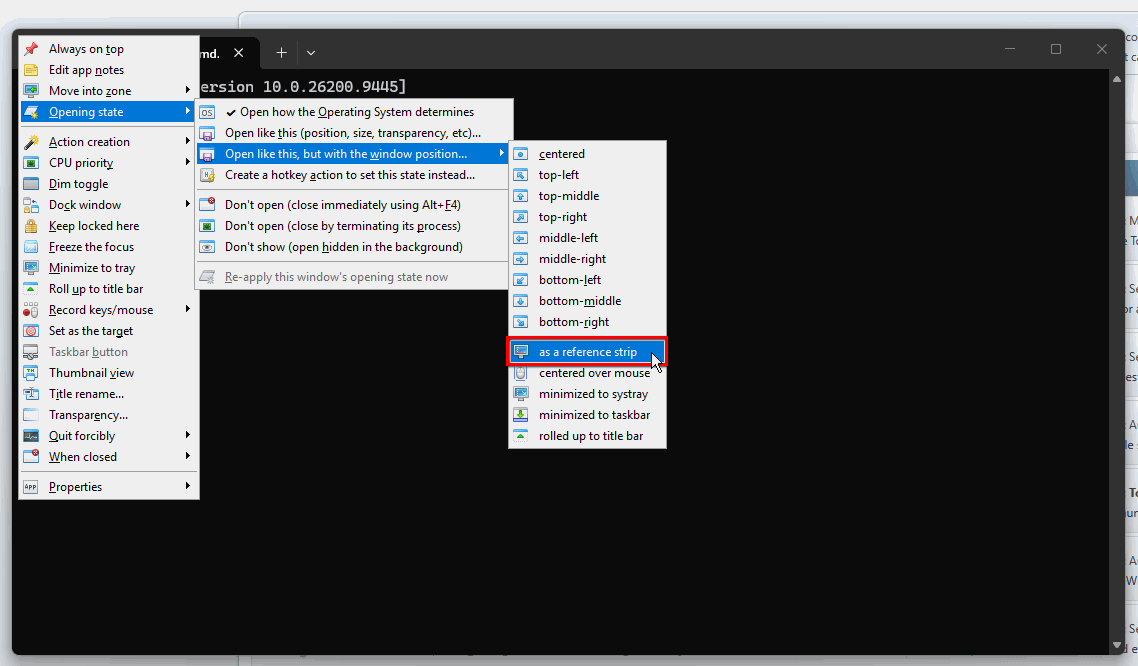
The big ugly default CMD prompt will open somewhere random on the desktop, covering your open windows. :( To prevent this nastiness, middle-click its icon area (top-left corner of its window) and navigate to and select "Opening state > Open like this, but with the window position > as a reference strip":
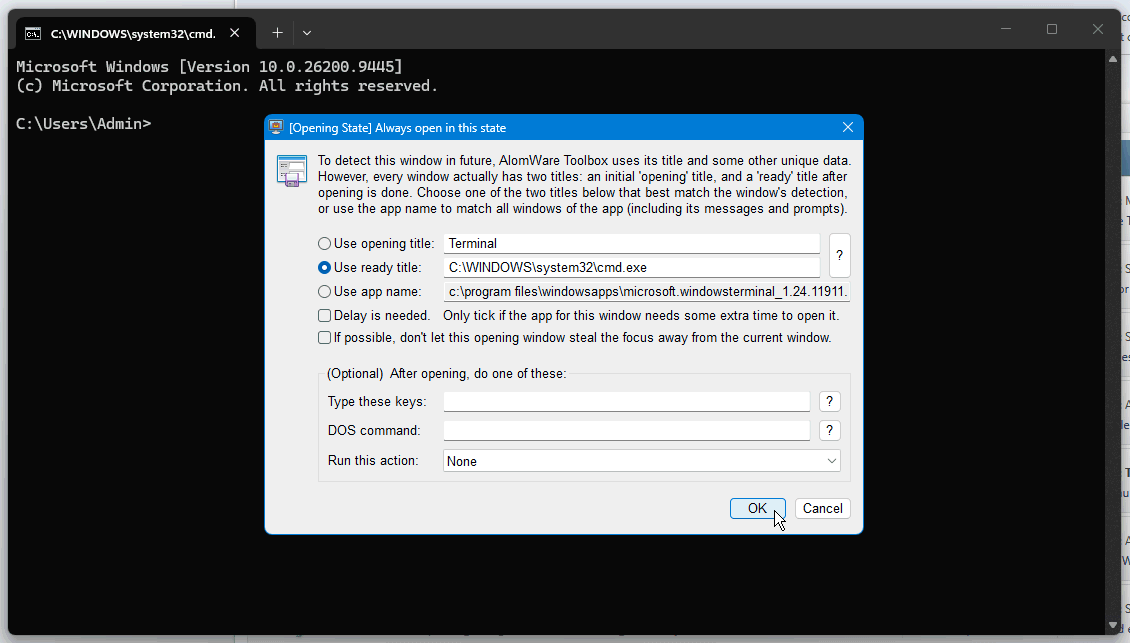


A confirmation dialog box appears (below), so just click the "OK" button to accept it:


Done! To test, close the CMD prompt and then re-open it by pressing Win+R and entering "cmd" again. As shown below, it now auto-opens wide, on top of all other windows, and transparent. Cool! 8)

#29
General Discussion / Re: Maximum size of an action?
September 29, 2026, 10:08:25 PM
I wonder how many people here will get the reference? The original quote was a very long time ago.
#30
Sometimes you want to refer to your own custom notes about the app you're currently using. You could create and open your own saved document to do it, but AlomWare Toolbox lets you open a Notepad document from a hotkey or pop-up menu from the app itself, which is saved in your AlomWare Toolbox folder for portability if AlomWare Toolbox is run from a USB stick.

For the hotkey version, create this action:

(Start)
HOW TO USE: Copy from Start to End, and then paste into an action.
REFERENCE : See an example of pasting at alomware.com/paste.png
0001 Action: Allow failure messages "0"
0002 Window: Assign active ""
0003 Window: Edit app notes ""
(End)
Assign this action to a hotkey, and then press that hotkey on whatever window is active to open your Notepad notes for it. Easy! :)

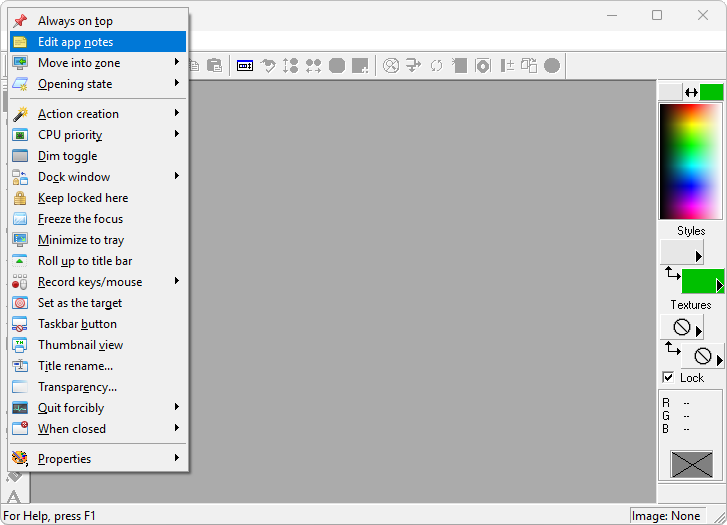
For the pop-up menu version, first middle-click the icon area of the active window, and then select "Edit app notes" from the Power menu that appears. Here's a screenshot showing this for the app "Paint Shop Pro":


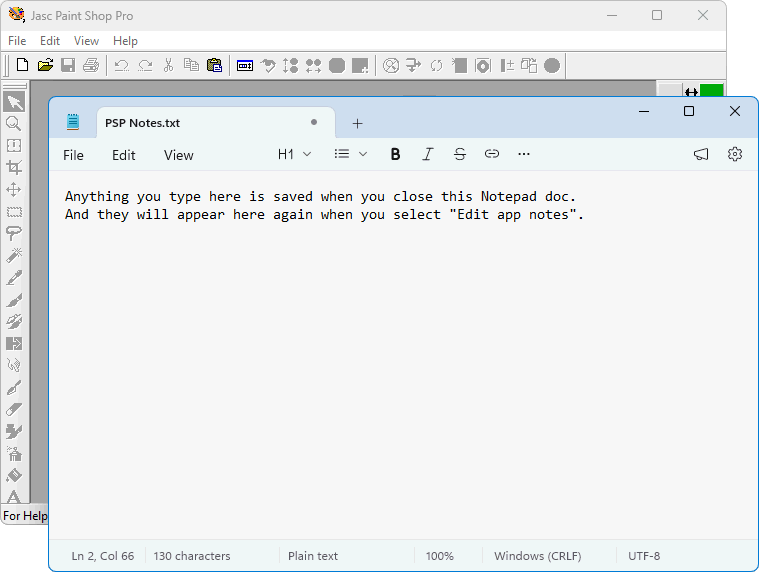
The Notepad document for that app will open for editing and viewing your notes:


That's it! Two easy ways to achieve quick access to your own custom notes for any app. :)