Question: Looking for a way to pin a window above all other windows
"I would like to keep a small window in the corner of my screen while working in another application. When I switch between programs, the pinned window should remain visible instead of going behind the active window."
The solution posted there was to install Windows PowerToys, but that installation takes up 515 MB of disk space to do the job. Why would you waste almost half a GB of your precious hard drive capacity like that? Plus, PowerToys doesn't keep a window on top of the taskbar and can't set a window to be on top automatically whenever the window opens. AlomWare Toolbox handles both of these and is less than 4 MB in size with no installation needed (it's a portable app).
To keep any window on top of all others with AlomWare Toolbox, just create this simple action:
Assign this action to a hotkey trigger and press the hotkey when the desired window is active. If the window is NOT on top of all others, then it becomes so. If it's already on top, then it stops being that state (which is useful for apps that set their windows on top that you may not want to be on top).
If you don't want the action to toggle the top-most state and just make the window stay on top when the hotkey is pressed, just change step 3 so that the text "toggle" is "1" for yes (always on top).
Unlike other apps, AlomWare Toolbox keeps the top-most state over the Windows taskbar, too! The target window truly is on top of all others.
Alternatively: If you have a regular window that you always want to open in a top-most state (such as the Calculator), then you can make AlomWare Toolbox do that, too. Just middle-click the window's icon area and select "Always on top" from the menu:
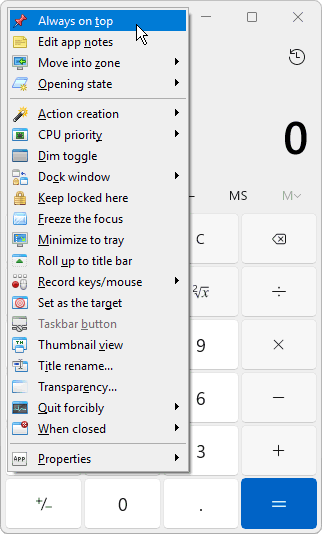
That window is now set to be on top, but since we'd like it to always open that way in future, we middle-click the window's icon area again and select "Opening state > Open like this (position, size, transparency, etc)":
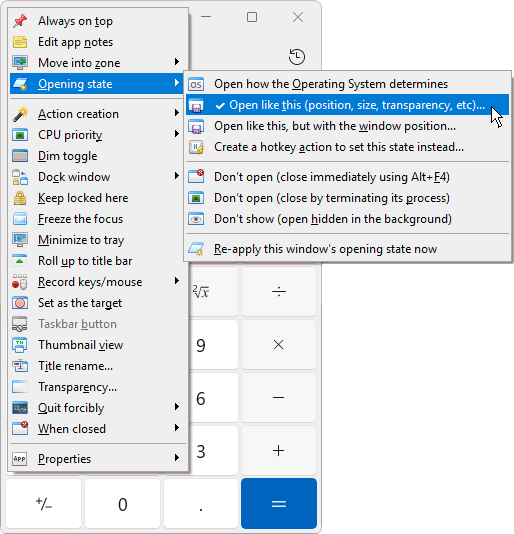
A confirmation window for the state now opens, so we can just click the "OK" button to accept it:
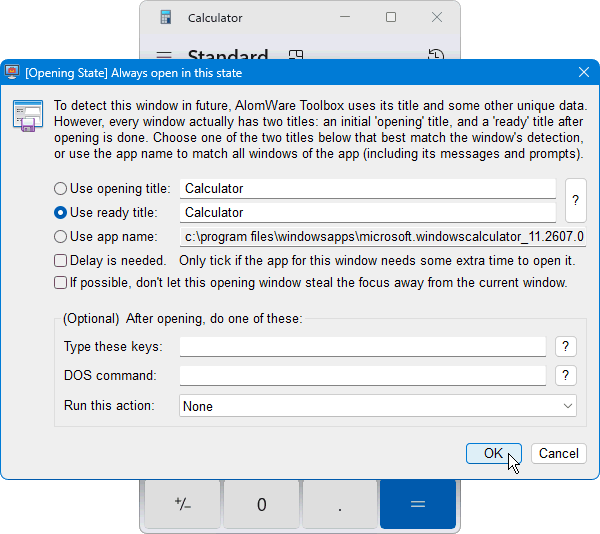
That's it! Now whenever that window opens (Calculator in this example), it will automatically open always on top of all others.
Tip: Did you see in the last screenshot that you can optionally set keystrokes to type, or a DOS command to run, or an automated action to run, whenever the window opens? Now that's handy!
"I would like to keep a small window in the corner of my screen while working in another application. When I switch between programs, the pinned window should remain visible instead of going behind the active window."
The solution posted there was to install Windows PowerToys, but that installation takes up 515 MB of disk space to do the job. Why would you waste almost half a GB of your precious hard drive capacity like that? Plus, PowerToys doesn't keep a window on top of the taskbar and can't set a window to be on top automatically whenever the window opens. AlomWare Toolbox handles both of these and is less than 4 MB in size with no installation needed (it's a portable app).
To keep any window on top of all others with AlomWare Toolbox, just create this simple action:
Code Select
(Start)
HOW TO USE: Copy from Start to End, and then paste into an action.
REFERENCE : See an example of pasting at alomware.com/paste.png
0001 Action: Allow failure messages "0"
0002 Window: Assign active ""
0003 Window: Always on top "toggle"
(End)
Assign this action to a hotkey trigger and press the hotkey when the desired window is active. If the window is NOT on top of all others, then it becomes so. If it's already on top, then it stops being that state (which is useful for apps that set their windows on top that you may not want to be on top).
If you don't want the action to toggle the top-most state and just make the window stay on top when the hotkey is pressed, just change step 3 so that the text "toggle" is "1" for yes (always on top).
Unlike other apps, AlomWare Toolbox keeps the top-most state over the Windows taskbar, too! The target window truly is on top of all others.
Alternatively: If you have a regular window that you always want to open in a top-most state (such as the Calculator), then you can make AlomWare Toolbox do that, too. Just middle-click the window's icon area and select "Always on top" from the menu:
That window is now set to be on top, but since we'd like it to always open that way in future, we middle-click the window's icon area again and select "Opening state > Open like this (position, size, transparency, etc)":
A confirmation window for the state now opens, so we can just click the "OK" button to accept it:
That's it! Now whenever that window opens (Calculator in this example), it will automatically open always on top of all others.
Tip: Did you see in the last screenshot that you can optionally set keystrokes to type, or a DOS command to run, or an automated action to run, whenever the window opens? Now that's handy!
 The next release (v9.0.0.1 tomorrow) will allow text of up to 2048 characters (2 KB) to be converted into a QR code.
 Well, until now due to the activation check.