General Menu
At the top of AlomWare Toolbox's window is a menu called "General" (Figure 1) for managing a few miscellaneous items of AlomWare Toolbox, such as your opening window states and custom window zones.
| Figure 1 |
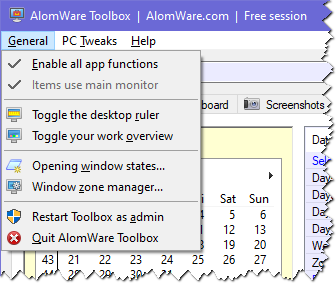 |
Here's what the menu options do:
- Enable all app functions - Unticking this makes AlomWare Toolbox act as though it isn't running. That is, no hotkey or other automation triggers will work, no automated actions will run, no windows will auto-move, no clipboard history is maintained, and so on. Basically use this when you need to disable the app temporarily without actually quitting it.
- Items use main monitor - This item will be disabled if your PC has only one monitor, but if you have more than one, then ticking this will make AlomWare Toolbox prioritise window placement to whatever monitor is set as your main one in Windows. For example, centering a window will be to that main monitor only. If unticked, then centering a window will be based on the center all of monitors (that is, your large virtual desktop). Note: There is an automated action step called Window: Use main monitor, which can be used in an action to override this menu setting for that particular action.
- Toggle the desktop ruler - Shows or hides AlomWare Toolbox's horizontal ruler, for times when you need to measure the width of something or just mark your place in a document's text. When the ruler is active (has green text) you can scroll the mouse wheel on it to change its transparency. There are some automated action steps for the ruler:
- Toolbox: Show the ruler - Shows or hides the ruler.
- Toolbox: Move the ruler - Moves the ruler vertically up or down by # pixels, so you can use a hotkey to move the ruler's position in a document line-by-line as you're reading it. Press the [F1] key when the ruler is active (has green text) to learn how to change the # distance to a custom size with the [Home] and [End] keys.
- Toggle your work overview - Shows or hides your work overview, which shows all open windows as small realtime thumbnails in a strip. There is an automated action step called Toolbox: Show work overview for, which lets you show the default overview for either all windows, windows with specific text in their title bar, or windows belonging to specific apps (such as all open Word documents).
- Opening window states - Lets you view and delete your saved opening window states that you previously created with the Power Menu. There is also a "Class Editor" here where you can specify partial window classes for better window matching.
- Window zone manager - Lets you create, edit, rename or delete your custom window zones. There is an automated action step called Window: Move to desktop position, which lets you specify a zone name from here to move the assigned window into.
- Restart Toolbox as admin - If you're running AlomWare Toolbox with standard rights, you can select this item to immediately restart the app with administrator rights (and you may need to enter a User Account Control (UAC) password for your PC). If this item is disabled, then AlomWare Toolbox is already running with administrator rights.
- Quit AlomWare Toolbox - Totally quits AlomWare Toolbox. If you'd prefer not to actually quit it but just disable it for a while, then untick the Enable all app functions menu option instead (see above).