- Welcome to AlomWare Toolbox Forum.
Recent posts
#11
Feature Requests / Re: Messageboxes and formattin...
Last post by Paul (Lead Developer) - October 21, 2026, 10:29:16 AMColors (and rich text) aren't possible with the message boxes as Windows doesn't support that. 
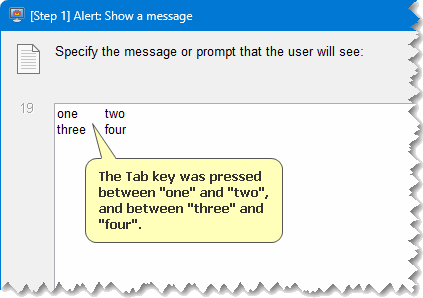
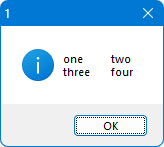
For tabs, you can press the Tab key when composing your text and they'll be tabbed in the shown message box:
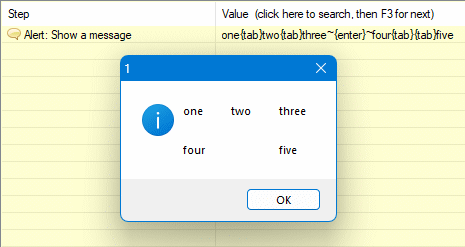
Having said that, I have also just made the next version allow both {enter} and {tab} to be specified as part of the text for messages. So you will be able to do this for your Data or Strings if you choose to type them as one line:
For tabs, you can press the Tab key when composing your text and they'll be tabbed in the shown message box:
Having said that, I have also just made the next version allow both {enter} and {tab} to be specified as part of the text for messages. So you will be able to do this for your Data or Strings if you choose to type them as one line:
Code Select
Data: Add "one{tab}two{tab}three~{enter}~four{tab}{tab}five" #12
Feature Requests / Window-specific menus
Last post by rjbull - October 21, 2026, 06:43:44 AMWould it be useful to have window-specific menus?
The idea is that if I'm editing a particular file with a particular editor, say, Toolbox would pop up a menu of actions specific to that situation, e.g., boilerplate texts. Or if I was using the database, it would pop up a menu of macros to export data in a given format. As an alternative to popping-up willy-nilly whenever a chosen window appeared, perhaps there could be a universal hotkey to summon the correct menu for that window. That way, you wouldn't have to remember an endless series of hotkeys.
I realise that there can be difficulties distinguishing parent from child windows, but I wasn't too bothered when using similar system in the past.
The idea is that if I'm editing a particular file with a particular editor, say, Toolbox would pop up a menu of actions specific to that situation, e.g., boilerplate texts. Or if I was using the database, it would pop up a menu of macros to export data in a given format. As an alternative to popping-up willy-nilly whenever a chosen window appeared, perhaps there could be a universal hotkey to summon the correct menu for that window. That way, you wouldn't have to remember an endless series of hotkeys.
I realise that there can be difficulties distinguishing parent from child windows, but I wasn't too bothered when using similar system in the past.
#13
Tips and Tricks / Re: [Tip] Search for text in t...
Last post by oblivion - October 21, 2026, 01:53:44 AMNot sure why it's taken me so long to try this extremely cool action.
I should say that it works perfectly but it wouldn't work for me until I'd added
at the first line.
I should say that it works perfectly but it wouldn't work for me until I'd added
Code Select
0001 Wait: For action hotkey to be released ""at the first line.
#14
Feature Requests / Messageboxes and formatting
Last post by oblivion - October 20, 2026, 09:21:18 PMThis might be a big ask, and it's entirely cosmetic so I wont be upset if it's too complicated or trivial to bother with!
In the context of my cheat sheet script tutorial, I found myself wishing I could format the message text a bit better.
A couple of possibilities occur to me: first, might it be possible to support tabs, so text that's not at the start of the line could be aligned?
Second, might it be possible to support colours?
So -- if I had both wishes granted, I could do something like
and my output would be prettified?
In the context of my cheat sheet script tutorial, I found myself wishing I could format the message text a bit better.
A couple of possibilities occur to me: first, might it be possible to support tabs, so text that's not at the start of the line could be aligned?
Second, might it be possible to support colours?
So -- if I had both wishes granted, I could do something like
Code Select
Data: Add [darkblue]name${tab}[darkred]header$and my output would be prettified?
#15
Feature Requests / Re: Unavailable hotkeys
Last post by oblivion - October 20, 2026, 09:06:53 PMI just found this again, it reminded me of a thought I'd had. Probably trivial, but how about a click on the Trigger column header to be a shortcut to /any so you get an instant filter to everything with a defined trigger?
I suppose you could have it toggle between /any, /hk, /ty and no filter too...
I suppose you could have it toggle between /any, /hk, /ty and no filter too...
#16
Tips and Tricks / Re: [tutorial] Automating a ch...
Last post by Paul (Lead Developer) - October 19, 2026, 05:59:27 PMThanks for the detailed tutorial, Oblivion! 
#17
Tips and Tricks / [tutorial] Automating a cheat ...
Last post by oblivion - October 19, 2026, 02:00:44 AMFirst and foremost, you must have a version of Toolbox at or above 9.0.0.5 to be able to run the action documented below.
This is because it relies on an internal variable that didn't previously exist, a new comparison operator and also a bugfix for user-created variables.
This is a long post. There's a lot of stuff that gets explained here: user-defined variables, decision making, looping through an indefinite number of files, swapping data into and out of variables with specific uses... I've tried to explain everything fairly clearly but if you're new to scripting, there's a lot to take in here.
The intention is to make a cheat sheet for actions that have been created but you might need reminding of, and to do it in such a way that you don't have to remember to update a separate cheat sheet -- because that's what I did, until recently, and kept forgetting to add new actions to the list.
So you need to make an actions group containing all the actions you want to be reminded of. The script assumes you've called this "My Useful Stuff" and that you've moved all the actions you want reminders for the triggers of into it. We're also assuming here that no actions in this group are missing a trigger.
A quick aside: In the Automation tab, you have a list of actions in the left pane, headed by a dropdown list of groups that have been set up as part of the original installation and possibly added to by you. In case you've never touched what's there, you're probably looking at (All) in the dropdown. If you right-click the dropdown, click on "+New..." you can create a new group. If you want to follow this tutorial without having to modify anything else, call it "My Useful Stuff".
You can move actions between groups by right-clicking the action's name, clicking Move and choosing the group you want to move the action to. For the purposes of this, you should move anything with a defined trigger you struggle to remember to the "My Useful Stuff" group or, if you prefer a different group name, modify the relevant line in the below script. I'll mention this again later.
One key bit of this arose from a discussion elsewhere, where our brilliant developer pointed out that the actions are held in individual files and that the first line of each file is its defined trigger. There are actions that are text expansions (where you type something that Toolbox reacts to -- I call these hotstrings) and actions that respond to keypresses, like control-F1, which I call hotkeys. Recognising hotstrings is easy: the first four characters of that first line are always "Text".
Hotkeys are harder, and only really possible if we can assume that if an action isn't a hotstring, it MUST be a hotkey. Which is why everything in the group we're looking at must have a trigger, because otherwise actions with no trigger will also be reported as a hotkey. (It's possible to code round that, but I've chosen to deal
with that by ensuring we populate the group carefully in the first place, for simplicity.)
So what we want to do is look at each file in turn and make two lists, one of hotkeys and the other of hotstrings, then list both groups separately once the two lists are complete.
Most of the commands we'll need to use to achieve this can only be performed on the string$ and data$ variables. So we'll need some extra variables to hold important contents of the string$ and data$ variables in order not to lose what we've done as we go through the files.
We can create variables named more or less as we like but watch for a trap: a variable called mydata$ would be treated as the characters "my" followed by the data$ variable so create names carefully and avoid collisions with existing variables. I've tried to make variable names that are reasonably readable without colliding with internal variables, and they're all declared in the first few lines, via String: Assign to variable commands.
I don't think it's stated anywhere explicitly, by the way, but if you don't declare the variables you're going to use in this way, the action will fail.
tph$ and tpt$ will be the lists: tpt$ will hold the lines starting "Text", and tph$ everything else, being the hotstrings.
Tooldata$ is an internal variable that points at Toolbox's Data folder. The Actions subfolder contains the names of the action groups as subfolders, and "My Useful Stuff" is where all the actions we want to be reminded of have been put. If your action group is named differently, this is the only step you need to modify to match. The Folder: Assign command is a statement to Toolbox that this is the place we're going to be looking at the files contained within.
We have a process that will be applied to each of the files in the assigned folder, and this line is where the code will loop back to while there's still an unprocessed file to examine. That loop back happens at line 0024 below. From this point on, we're dealing with a single file and we have to ensure the process will be able to applied to anything we find.
I'm going to quote the Help for line 0007:
Line 0008 reads the first line of the active file and assigns it to the string$ variable. We're going to need string$ for other stuff later so
puts the string$ variable into our header$ variable we created in line 0004 as we'll need it for whichever of our lists it'll be put into later.
Ensure string$ and data$ are both empty.
The header$ variable contains the first line of the file we're looking at. The [ comparison operator here means "starts with" so what we're saying here is, if the file we're looking at is a text expansion, the next few lines (until the Action: End of block command) should be processed, but otherwise the block should be skipped.
So lines 0013 to 0016 are processed only because we now know that we're dealing with a text expansion.
Line 0013 puts the current content of our list of text expansions into the data$ variable, line 0014 adds the filename, an equals sign surrounded by spaces, the first line of the file and a linefeed (the ~ symbol) to the data$ variable, line 0015 assigns the content of the data$ variable to string$ and line 0016 puts the updated version into tpt$. Line 0017 finishes the block, which you'll remember we've only processed because we know we're dealing with a text expansion.
So now we need a similar block for our hotkeys. This time, we're going to use a new comparison operator:
So this time, the comparison operator is [! -- which means "does NOT start with." You'll remember that we can only recognise a hotkey because it doesn't match the definition of a hotstring? So if the first line of the file is NOT the word "Text" we're dealing with a hotkey.
The block is then a near copy of the block above, but using the hotkey variable instead of the hotstring variable:
So we've done all we need, so we can get the next file and loop back to line 0006:
Once all the files have been processed, we now have two complete lists: tph$ is our list of hotkeys, tpt$ is the list of text expansions. All that remains now is to display them.
My preference is to show them in separate message windows, hotkeys first then text expansions.
However, if you'd rather have hotstrings first, just switch those two lines round. And if you'd rather do everything in one message, you could do something like
And the entire action, without my blathering between chunks, is
Now you've got this, assign it a memorable trigger (I use ctrl-F1) and any time you make a new action that you want to be able to be reminded of the trigger for, all you need to do is put it in your "My Useful Stuff" group.
This is because it relies on an internal variable that didn't previously exist, a new comparison operator and also a bugfix for user-created variables.
This is a long post. There's a lot of stuff that gets explained here: user-defined variables, decision making, looping through an indefinite number of files, swapping data into and out of variables with specific uses... I've tried to explain everything fairly clearly but if you're new to scripting, there's a lot to take in here.
The intention is to make a cheat sheet for actions that have been created but you might need reminding of, and to do it in such a way that you don't have to remember to update a separate cheat sheet -- because that's what I did, until recently, and kept forgetting to add new actions to the list.
So you need to make an actions group containing all the actions you want to be reminded of. The script assumes you've called this "My Useful Stuff" and that you've moved all the actions you want reminders for the triggers of into it. We're also assuming here that no actions in this group are missing a trigger.
A quick aside: In the Automation tab, you have a list of actions in the left pane, headed by a dropdown list of groups that have been set up as part of the original installation and possibly added to by you. In case you've never touched what's there, you're probably looking at (All) in the dropdown. If you right-click the dropdown, click on "+New..." you can create a new group. If you want to follow this tutorial without having to modify anything else, call it "My Useful Stuff".
You can move actions between groups by right-clicking the action's name, clicking Move and choosing the group you want to move the action to. For the purposes of this, you should move anything with a defined trigger you struggle to remember to the "My Useful Stuff" group or, if you prefer a different group name, modify the relevant line in the below script. I'll mention this again later.
One key bit of this arose from a discussion elsewhere, where our brilliant developer pointed out that the actions are held in individual files and that the first line of each file is its defined trigger. There are actions that are text expansions (where you type something that Toolbox reacts to -- I call these hotstrings) and actions that respond to keypresses, like control-F1, which I call hotkeys. Recognising hotstrings is easy: the first four characters of that first line are always "Text".
Hotkeys are harder, and only really possible if we can assume that if an action isn't a hotstring, it MUST be a hotkey. Which is why everything in the group we're looking at must have a trigger, because otherwise actions with no trigger will also be reported as a hotkey. (It's possible to code round that, but I've chosen to deal
with that by ensuring we populate the group carefully in the first place, for simplicity.)
So what we want to do is look at each file in turn and make two lists, one of hotkeys and the other of hotstrings, then list both groups separately once the two lists are complete.
Most of the commands we'll need to use to achieve this can only be performed on the string$ and data$ variables. So we'll need some extra variables to hold important contents of the string$ and data$ variables in order not to lose what we've done as we go through the files.
We can create variables named more or less as we like but watch for a trap: a variable called mydata$ would be treated as the characters "my" followed by the data$ variable so create names carefully and avoid collisions with existing variables. I've tried to make variable names that are reasonably readable without colliding with internal variables, and they're all declared in the first few lines, via String: Assign to variable commands.
Code Select
0001 String: Clear ""
0002 String: Assign to variable "tph$"
0003 String: Assign to variable "tpt$"
0004 String: Assign to variable "header$"
I don't think it's stated anywhere explicitly, by the way, but if you don't declare the variables you're going to use in this way, the action will fail.
tph$ and tpt$ will be the lists: tpt$ will hold the lines starting "Text", and tph$ everything else, being the hotstrings.
Code Select
0005 Folder: Assign "tooldata$\Actions\My Useful Stuff"
Tooldata$ is an internal variable that points at Toolbox's Data folder. The Actions subfolder contains the names of the action groups as subfolders, and "My Useful Stuff" is where all the actions we want to be reminded of have been put. If your action group is named differently, this is the only step you need to modify to match. The Folder: Assign command is a statement to Toolbox that this is the place we're going to be looking at the files contained within.
Code Select
0006 Folder: Start of file processing ""
We have a process that will be applied to each of the files in the assigned folder, and this line is where the code will loop back to while there's still an unprocessed file to examine. That loop back happens at line 0024 below. From this point on, we're dealing with a single file and we have to ensure the process will be able to applied to anything we find.
Code Select
0007   File: Assign "folder$name$"
0008   String: Assign from line number in file "1"
I'm going to quote the Help for line 0007:
QuoteAssigns the file to be used by all 'File' steps. The assigned file is stored in its entirety in the file$ variable; plus its filename alone in filename$, its extension in fileext$, and its folder in filefolder$. The size of the file, in bytes, is stored in filesize$ and will be -1 if the file doesn't exist (because files can actually be 0 bytes in size).
Line 0008 reads the first line of the active file and assigns it to the string$ variable. We're going to need string$ for other stuff later so
Code Select
0009 String: Assign to variable "header$"
puts the string$ variable into our header$ variable we created in line 0004 as we'll need it for whichever of our lists it'll be put into later.
Code Select
0010   String: Clear ""
0011   Data: Clear ""
Ensure string$ and data$ are both empty.
Code Select
0012 Action: Do this block if "header$[Type"
The header$ variable contains the first line of the file we're looking at. The [ comparison operator here means "starts with" so what we're saying here is, if the file we're looking at is a text expansion, the next few lines (until the Action: End of block command) should be processed, but otherwise the block should be skipped.
So lines 0013 to 0016 are processed only because we now know that we're dealing with a text expansion.
Code Select
0013   Data: Assign "tpt$"
0014   Data: Add "name$ = header$~"
0015   String: Assign "data$"
0016   String: Assign to variable "tpt$"
0017   Action: End of block ""
Line 0013 puts the current content of our list of text expansions into the data$ variable, line 0014 adds the filename, an equals sign surrounded by spaces, the first line of the file and a linefeed (the ~ symbol) to the data$ variable, line 0015 assigns the content of the data$ variable to string$ and line 0016 puts the updated version into tpt$. Line 0017 finishes the block, which you'll remember we've only processed because we know we're dealing with a text expansion.
So now we need a similar block for our hotkeys. This time, we're going to use a new comparison operator:
Code Select
0018 Action: Do this block if "header$[!Type"
So this time, the comparison operator is [! -- which means "does NOT start with." You'll remember that we can only recognise a hotkey because it doesn't match the definition of a hotstring? So if the first line of the file is NOT the word "Text" we're dealing with a hotkey.
The block is then a near copy of the block above, but using the hotkey variable instead of the hotstring variable:
Code Select
0019   Data: Assign "tph$"
0020   Data: Add "name$ = header$~"
0021   String: Assign "data$"
0022   String: Assign to variable "tph$"
0023   Action: End of block ""
So we've done all we need, so we can get the next file and loop back to line 0006:
Code Select
0024 Folder: End of file processing ""
Once all the files have been processed, we now have two complete lists: tph$ is our list of hotkeys, tpt$ is the list of text expansions. All that remains now is to display them.
My preference is to show them in separate message windows, hotkeys first then text expansions.
Code Select
0025 Alert: Show a message "Hotkeys are:~~tph$"
0026 Alert: Show a message "Text expansions are:~~tpt$"
However, if you'd rather have hotstrings first, just switch those two lines round. And if you'd rather do everything in one message, you could do something like
Code Select
0025 Alert: Show a message "Hotkeys are:~~tph$~~Text expansions are~~tpt$"
And the entire action, without my blathering between chunks, is
Code Select
(Start)
HOW TO USE: Copy from Start to End, and then paste into an action.
REFERENCE : See an example of pasting at alomware.com/paste.png
0001 String: Clear ""
0002 String: Assign to variable "tph$"
0003 String: Assign to variable "tpt$"
0004 String: Assign to variable "header$"
0005 Folder: Assign "tooldata$\Actions\My Useful Stuff"
0006 Folder: Start of file processing ""
0007   File: Assign "folder$name$"
0008   String: Assign from line number in file "1"
0009   String: Assign to variable "header$"
0010   String: Clear ""
0011   Data: Clear ""
0012   Action: Do this block if "header$[Type"
0013   Data: Assign "tpt$"
0014   Data: Add "name$ = header$~"
0015   String: Assign "data$"
0016   String: Assign to variable "tpt$"
0017   Action: End of block ""
0018   Action: Do this block if "header$[!Type"
0019   Data: Assign "tph$"
0020   Data: Add "name$ = header$~"
0021   String: Assign "data$"
0022   String: Assign to variable "tph$"
0023   Action: End of block ""
0024 Folder: End of file processing ""
0025 Alert: Show a message "Hotkeys are:~~tph$"
0026 Alert: Show a message "Text expansions are:~~tpt$"
(End)
Now you've got this, assign it a memorable trigger (I use ctrl-F1) and any time you make a new action that you want to be able to be reminded of the trigger for, all you need to do is put it in your "My Useful Stuff" group.
#18
Tips and Tricks / [Tip] Auto-select the newest d...
Last post by Paul (Lead Developer) - October 18, 2026, 08:47:27 PMWhen your desktop is a mess of files, folders and shortcuts it can be hard to find the newest desktop file that you just downloaded.
Luckily, one of AlomWare Toolbox's default actions lets you auto-select the newest desktop file, so if you've just download something that's now hidden in that desktop mess, you can run the action and the downloaded file gets conveniently selected for you. You can then press Enter to run it, or do something else like press Ctrl+X to cut it for pasting into another folder with Ctrl+V.
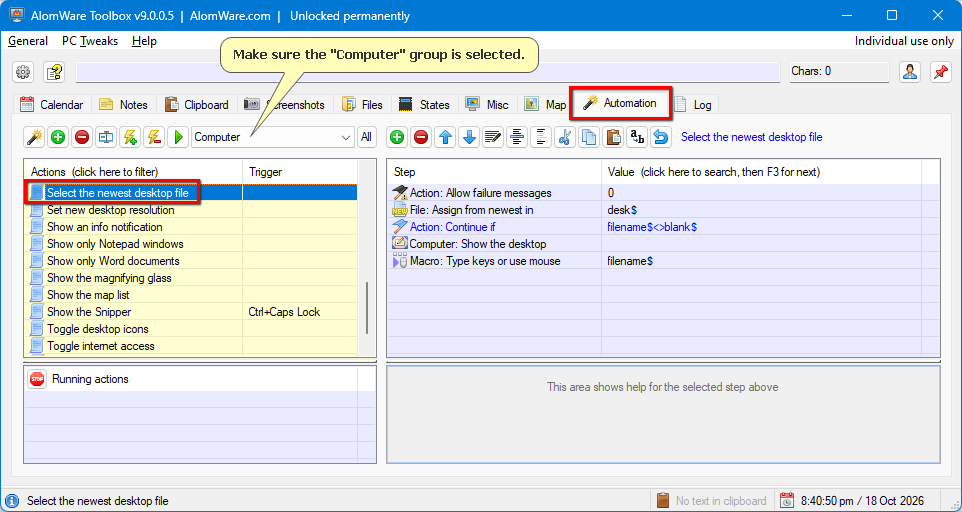
Below is the action and a screenshot of it in the app. It's probably a good idea to assign a hotkey trigger to the action for easy access.
Luckily, one of AlomWare Toolbox's default actions lets you auto-select the newest desktop file, so if you've just download something that's now hidden in that desktop mess, you can run the action and the downloaded file gets conveniently selected for you. You can then press Enter to run it, or do something else like press Ctrl+X to cut it for pasting into another folder with Ctrl+V.
Below is the action and a screenshot of it in the app. It's probably a good idea to assign a hotkey trigger to the action for easy access.
Code Select
(Start)
HOW TO USE: Copy from Start to End, and then paste into an action.
REFERENCE : See an example of pasting at alomware.com/paste.png
0001 Action: Allow failure messages "0"
0002 File: Assign from newest in "desk$"
0003 Action: Continue if "filename$<>blank$"
0004 Computer: Show the desktop ""
0005 Macro: Type keys or use mouse "filename$"
(End)
#19
Tips and Tricks / [Tip] Using the desktop magnif...
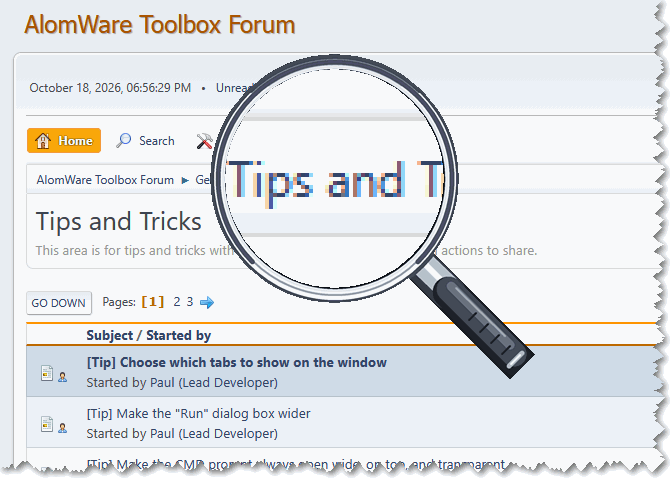
Last post by Paul (Lead Developer) - October 18, 2026, 08:32:44 PMVersion 9.0.0.5 of AlomWare Toolbox introduced a new magnifying glass feature with a step called "Toolbox: Show the magnifier". When used, it shows a magnifying glass on your desktop that you can drag around to zoom in on things. It's not intended to be a replacement for the app's "Desktop Info" tab, but more for just quickly zooming in on something to see it better for a moment. You can zoom in or out by scrolling the mouse wheel on the lens.
Here's an action that shows the magnifier while a hotkey is held down, and then hides it when the hotkey is released:
Here's an action that shows the magnifier while a hotkey is held down, and then hides it when the hotkey is released:
Code Select
(Start)
HOW TO USE: Copy from Start to End, and then paste into an action.
REFERENCE : See an example of pasting at alomware.com/paste.png
0001 Toolbox: Show the magnifier "1"
0002 Wait: For action hotkey to be released ""
0003 Toolbox: Show the magnifier "0"
(End)
#20
Help and Support / Re: Variables
Last post by oblivion - October 18, 2026, 02:58:20 AMI can confirm that variables now work as I expected them to
Again for onlookers, I tripped over the problem while trying to develop a version of my Action list script that separated out hotstrings from text expansions; as it needs the (new) tooldata$ variable and the bugfix to work, I'll hold off posting it -- but I'll write it up as a tutorial once the updates have made it into the release version of Toolbox.
Again for onlookers, I tripped over the problem while trying to develop a version of my Action list script that separated out hotstrings from text expansions; as it needs the (new) tooldata$ variable and the bugfix to work, I'll hold off posting it -- but I'll write it up as a tutorial once the updates have made it into the release version of Toolbox.