- Welcome to AlomWare Toolbox Forum.
Recent posts
#41
Bug Reports / Re: Actions getting kind of lo...
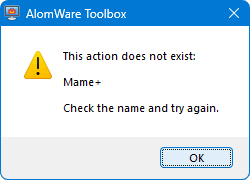
Last post by Paul (Lead Developer) - October 08, 2026, 06:51:48 PMAh, I see. Bug confirmed: the action is not found after moving groups. Fixed for the next update (check your email to download the fix).
#42
Feature Requests / Re: Action list
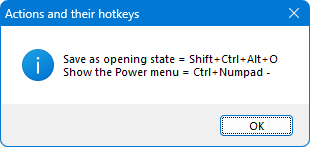
Last post by Paul (Lead Developer) - October 08, 2026, 05:35:00 PMHaha!  If it's a hotkey that uses more than one character (so not just "/" or such), then you could make it list only actions with those type of hotkeys:
Then you get this:
If it's a hotkey that uses more than one character (so not just "/" or such), then you could make it list only actions with those type of hotkeys:Code Select
(Start)
HOW TO USE: Copy from Start to End, and then paste into an action.
REFERENCE : See an example of pasting at alomware.com/paste.png
0001 Folder: Assign "C:\[Paul]\[Toolbox]\Toolbox Data\Actions\Windows"
0002 Folder: Start of file processing ""
0003  File: Assign "folder$name$"
0004  String: Assign from line number in file "1"
0005  Action: Do next step if "stringlen$>1"
0006  Data: Add "name$ = string$~"
0007 Folder: End of file processing ""
0008 Alert: Show a message "data$"
(End)
Then you get this:
#43
Bug Reports / [Fixed] Actions getting kind o...
Last post by oblivion - October 08, 2026, 04:34:28 AMNot quite sure how to describe this.
So in the context of the answer to a question -- see the Action List request -- I reorganised my actions into two groups: one to appear in the action list, one to house the others.
I have a few (five) actions that, because they're named with a trailing +, appear in the Toolbox right-click menu, and they got split up between the two groups.
All worked as expected. However... when it came to invoking one of the + items from the right-click menu, I got an error.
Restarting Toolbox restored expected functionality. So I'd guess that moving actions between groups doesn't keep them in synch with the actions that have been added to the Toolbox right-click menu?
So in the context of the answer to a question -- see the Action List request -- I reorganised my actions into two groups: one to appear in the action list, one to house the others.
I have a few (five) actions that, because they're named with a trailing +, appear in the Toolbox right-click menu, and they got split up between the two groups.
All worked as expected. However... when it came to invoking one of the + items from the right-click menu, I got an error.
Restarting Toolbox restored expected functionality. So I'd guess that moving actions between groups doesn't keep them in synch with the actions that have been added to the Toolbox right-click menu?
#44
Feature Requests / Re: Action list
Last post by oblivion - October 08, 2026, 02:31:18 AMThanks, Paul -- that's amazing
So now all we need is a way to add the yellow highlights programmatically!
So now all we need is a way to add the yellow highlights programmatically!
#45
Help and Support / Re: Clear all hotkeys
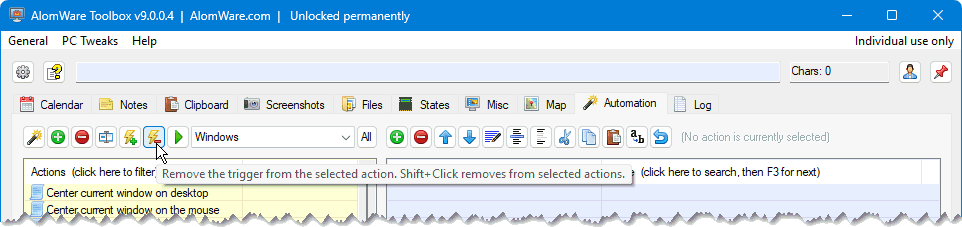
Last post by Paul (Lead Developer) - October 07, 2026, 09:03:04 PMHi Xoannon. Select all actions by pressing Ctrl+A in the Action list, and then hold down the Shift key when clicking the "Remove trigger" button:
#46
Feature Requests / Re: Action list
Last post by Paul (Lead Developer) - October 07, 2026, 08:27:32 PMHi Oblivion. Here's what I think you want? Try this action, but replace the Action path and group in step 1 to where your "Toolbox Data\Actions" is located. I guess I should add a variable called "tooldata$" for the next release, which points to the "Toolbox Data" folder. 
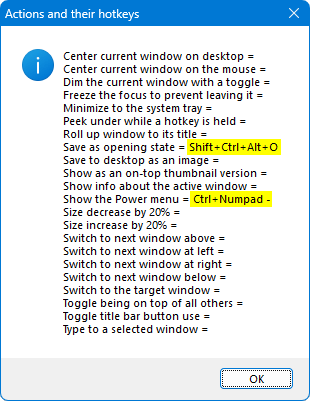
Running this action will show a message of all actions from the group in step 1, with their hotkeys (if any) like below. Yellow highlights added by yours truly.
Code Select
(Start)
HOW TO USE: Copy from Start to End, and then paste into an action.
REFERENCE : See an example of pasting at alomware.com/paste.png
0001 Folder: Assign "C:\[Paul]\[Toolbox]\Toolbox Data\Actions\Windows"
0002 Folder: Start of file processing ""
0003  File: Assign "folder$name$"
0004  String: Assign from line number in file "1"
0005  Data: Add "name$ = string$~"
0006 Folder: End of file processing ""
0007 Alert: Show a message "data$"
(End)
Running this action will show a message of all actions from the group in step 1, with their hotkeys (if any) like below. Yellow highlights added by yours truly.
#47
Feature Requests / Re: Unavailable hotkeys
Last post by Paul (Lead Developer) - October 07, 2026, 08:04:05 PMHi Oblivion. Hotkeys are assigned when the app starts and any that are unavailable are shown in red (see mock image below). Once successfully assigned (not red), no other third-party app can unassign them (except for the OS itself). Sometimes a hotkey that used to work in Toolbox may no longer be available when Windows steals it for itself with an OS update, which I suspect is what happened to you. Which hotkey was it?
You can always refresh the Action list (which unassigns all hotkeys and reassigns them again) by holding down the Ctrl key when clicking the Action list header. This will make any "bad" hotkeys show in red, along with a clash count in the list header. Tip: You can filter the Action list to show only action that use hotkeys by setting /hk as the list filter.
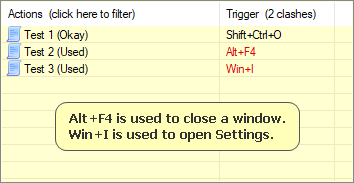
You can always refresh the Action list (which unassigns all hotkeys and reassigns them again) by holding down the Ctrl key when clicking the Action list header. This will make any "bad" hotkeys show in red, along with a clash count in the list header. Tip: You can filter the Action list to show only action that use hotkeys by setting /hk as the list filter.
#48
Feature Requests / Action list [done]
Last post by oblivion - October 06, 2026, 11:02:03 PMMight it be possible for an action to collect (for display in a message box) a tabular list of all the automation actions (with their triggers) in a specific group? Possibly sorted in the same way they're sorted in the Automation tab?
Basically, I'm wondering if I can stop having to remember to put reminders of new actions in my Cheat Sheet action, and manage its content instead by putting actions I want to be reminded of in a named group, so I could do something like
string$=ToolboxActions(MyActions)
alert:show a message(string$)
Basically, I'm wondering if I can stop having to remember to put reminders of new actions in my Cheat Sheet action, and manage its content instead by putting actions I want to be reminded of in a named group, so I could do something like
string$=ToolboxActions(MyActions)
alert:show a message(string$)
#49
Feature Requests / Unavailable hotkeys
Last post by oblivion - October 06, 2026, 10:47:28 PMI've noticed that sometimes, a hotkey I've associated with an action stops being available for that action -- presumably because some other application has grabbed it. If you try to change the hotkey for the action to the one that previously worked, Toolbox will say it's not available. But there doesn't seem to be a way to tell, at a glance, if an assigned hotkey has acquired a problem.
I imagine that asking Toolbox to show assigned hotkeys up in red or something in the Actions list if they're no longer available for the action they previously worked for might be expensive in CPU time, but might it be possible for there be a menu command that can scan through user-assigned hotkeys and report problems?
I imagine that asking Toolbox to show assigned hotkeys up in red or something in the Actions list if they're no longer available for the action they previously worked for might be expensive in CPU time, but might it be possible for there be a menu command that can scan through user-assigned hotkeys and report problems?
#50
Help and Support / Re: Clear all hotkeys
Last post by Xoannon - October 06, 2026, 07:19:08 PMWhere do we do this? I see a button to remove a hotkey for a selected action, but not for all? When I select some actions and click the remove option, a message says no single action is selected. I'm using the latest version.