- Welcome to AlomWare Toolbox Forum.
Recent posts
#51
Tips and Tricks / Re: [Tip] Make the CMD prompt ...
Last post by Xoannon - October 06, 2026, 07:12:21 PMThx. I've enabled that on my PC now. Good tweak!
#52
Tips and Tricks / Re: [Tip] Make the CMD prompt ...
Last post by Paul (Lead Developer) - October 05, 2026, 07:44:32 PMIt's an AlomWare Toolbox tweak: https://www.alomware.com/forum/index.php?topic=170.0
#53
Tips and Tricks / Re: [Tip] Make the CMD prompt ...
Last post by Xoannon - October 05, 2026, 05:40:41 PMWhy is the Run window so long in your first screenshot? How did you do it? It doesn't have resize handles.
#54
Tips and Tricks / [Tip] Make the CMD prompt alwa...
Last post by Paul (Lead Developer) - September 30, 2026, 10:26:23 PMOne annoyance of Windows is that the CMD prompt (or DOS/Terminal prompt) normally opens as a big rectangle randomly somewhere on the desktop, and doesn't stay on top of all other windows when using it. It's also not transparent, so you can't easily see what's under it, resulting in you having to move it with the mouse (or minimize it) to see things underneath. All this is counter-productive to your work.  There must be a better way, and there is!
AlomWare Toolbox has a window opening state called "As a reference strip", which means to position the window across the entire width of the bottom quarter of the desktop, with slight transparency, and remain on top of all other windows. The extra width means that DOS or PowerShell commands will now show their output text in a longer row, resulting in less horizontal scrolling (or even none) by you with the mouse to read it all. Nice!
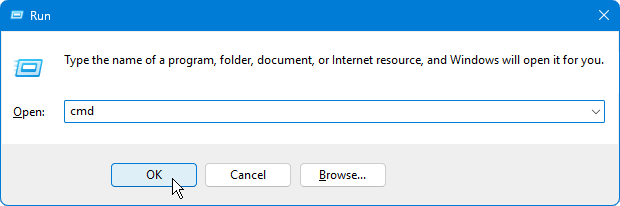
So how do we set the CMD/DOS/Terminal prompt to always auto-open this way? First, open the prompt by pressing Win+R and typing "cmd" and pressing the Enter key (or clicking "OK"):
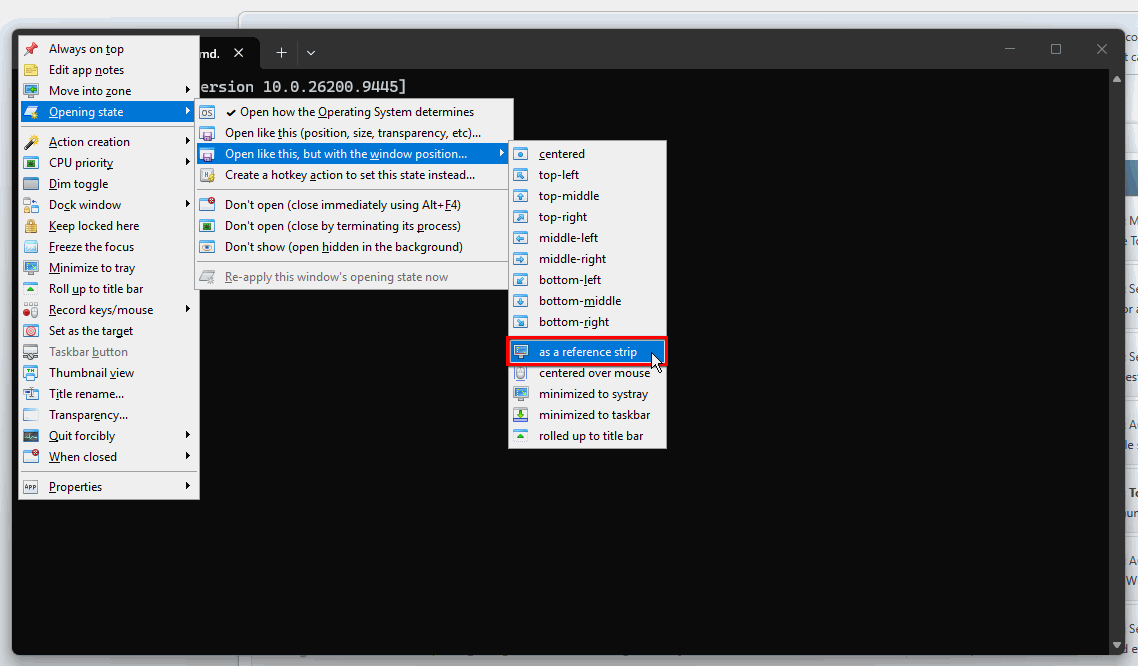
The big ugly default CMD prompt will open somewhere random on the desktop, covering your open windows. To prevent this nastiness, middle-click its icon area (top-left corner of its window) and navigate to and select "Opening state > Open like this, but with the window position > as a reference strip":
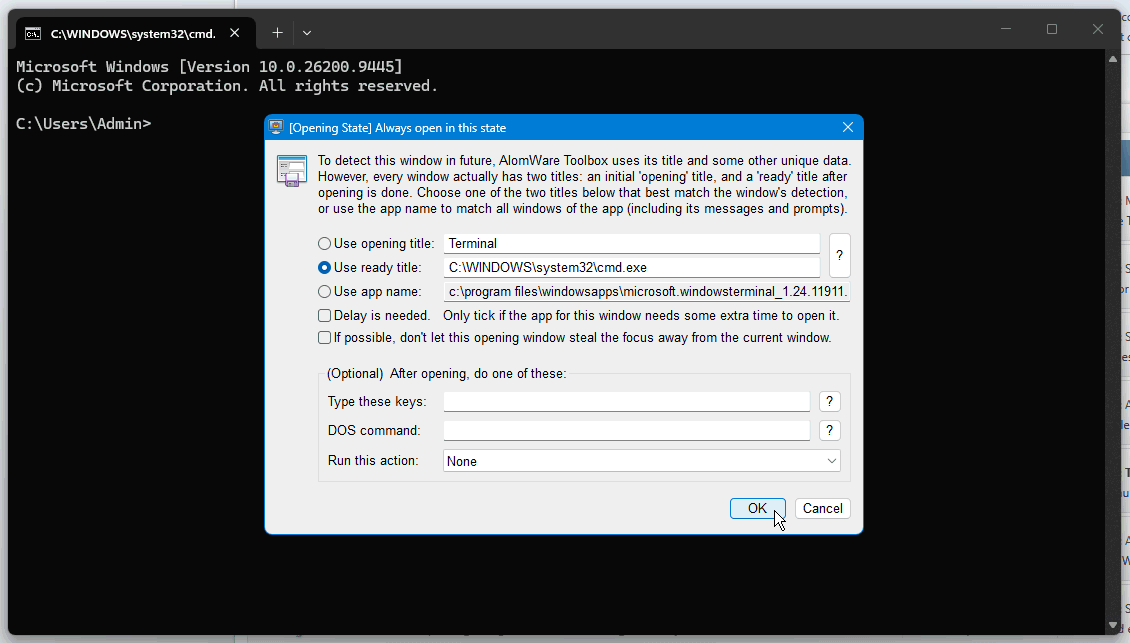
A confirmation dialog box appears (below), so just click the "OK" button to accept it:
Done! To test, close the CMD prompt and then re-open it by pressing Win+R and entering "cmd" again. As shown below, it now auto-opens wide, on top of all other windows, and transparent. Cool!

There must be a better way, and there is!AlomWare Toolbox has a window opening state called "As a reference strip", which means to position the window across the entire width of the bottom quarter of the desktop, with slight transparency, and remain on top of all other windows. The extra width means that DOS or PowerShell commands will now show their output text in a longer row, resulting in less horizontal scrolling (or even none) by you with the mouse to read it all. Nice!
So how do we set the CMD/DOS/Terminal prompt to always auto-open this way? First, open the prompt by pressing Win+R and typing "cmd" and pressing the Enter key (or clicking "OK"):
The big ugly default CMD prompt will open somewhere random on the desktop, covering your open windows.
To prevent this nastiness, middle-click its icon area (top-left corner of its window) and navigate to and select "Opening state > Open like this, but with the window position > as a reference strip":A confirmation dialog box appears (below), so just click the "OK" button to accept it:
Done! To test, close the CMD prompt and then re-open it by pressing Win+R and entering "cmd" again. As shown below, it now auto-opens wide, on top of all other windows, and transparent. Cool!
#55
General Discussion / Re: Maximum size of an action?
Last post by oblivion - September 30, 2026, 05:01:10 PMBill Gates. 640K ought to be enough for anybody.
I was thinking about my first "proper" PC recently -- 640K and twin 360K floppy disks. I added a hard disk to it via a plugin expansion card. The drive's capacity -- also completely adequate for the time -- was 32Mb.
I download podcasts that wouldn't fit on that HD, now.
I was thinking about my first "proper" PC recently -- 640K and twin 360K floppy disks. I added a hard disk to it via a plugin expansion card. The drive's capacity -- also completely adequate for the time -- was 32Mb.
I download podcasts that wouldn't fit on that HD, now.
#56
General Discussion / Re: Maximum size of an action?
Last post by Paul (Lead Developer) - September 29, 2026, 10:08:25 PMI wonder how many people here will get the reference? The original quote was a very long time ago.
#57
General Discussion / Re: Maximum size of an action?
Last post by Xoannon - September 29, 2026, 08:30:12 PM9999 steps ought to be enough for anybody.
#58
Tips and Tricks / Re: Non-destructive temp clipb...
Last post by Xoannon - September 29, 2026, 08:26:02 PMSorry for my late reply. Yes it works now with that hotkey wait step. Thx.
#59
Tips and Tricks / [Tip] Editing app notes for th...
Last post by Paul (Lead Developer) - September 27, 2026, 11:14:17 PMSometimes you want to refer to your own custom notes about the app you're currently using. You could create and open your own saved document to do it, but AlomWare Toolbox lets you open a Notepad document from a hotkey or pop-up menu from the app itself, which is saved in your AlomWare Toolbox folder for portability if AlomWare Toolbox is run from a USB stick.
For the hotkey version, create this action:
Assign this action to a hotkey, and then press that hotkey on whatever window is active to open your Notepad notes for it. Easy!
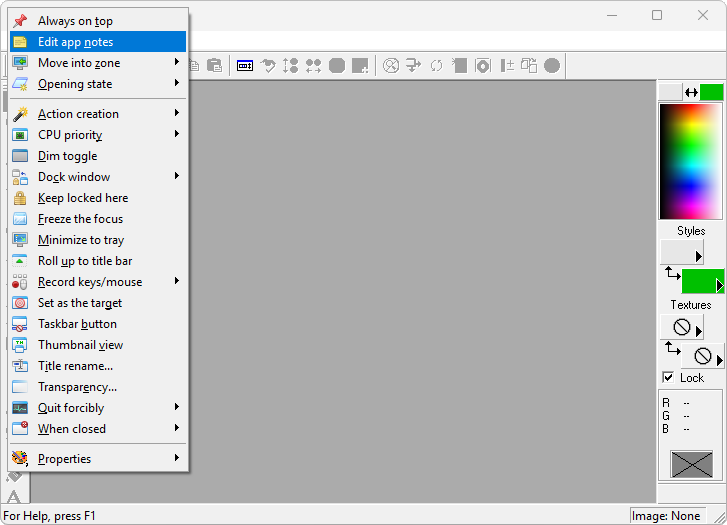
For the pop-up menu version, first middle-click the icon area of the active window, and then select "Edit app notes" from the Power menu that appears. Here's a screenshot showing this for the app "Paint Shop Pro":
The Notepad document for that app will open for editing and viewing your notes:
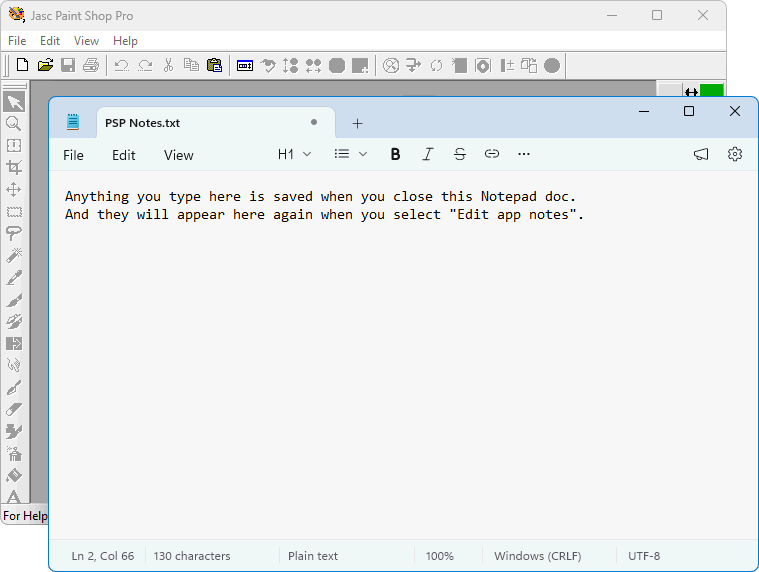
That's it! Two easy ways to achieve quick access to your own custom notes for any app.
For the hotkey version, create this action:
Code Select
(Start)
HOW TO USE: Copy from Start to End, and then paste into an action.
REFERENCE : See an example of pasting at alomware.com/paste.png
0001 Action: Allow failure messages "0"
0002 Window: Assign active ""
0003 Window: Edit app notes ""
(End)
Assign this action to a hotkey, and then press that hotkey on whatever window is active to open your Notepad notes for it. Easy!
For the pop-up menu version, first middle-click the icon area of the active window, and then select "Edit app notes" from the Power menu that appears. Here's a screenshot showing this for the app "Paint Shop Pro":
The Notepad document for that app will open for editing and viewing your notes:
That's it! Two easy ways to achieve quick access to your own custom notes for any app.
#60
Solutions / Looking for a way to pin a win...
Last post by Paul (Lead Developer) - September 27, 2026, 06:16:55 PMQuestion: Looking for a way to pin a window above all other windows
"I would like to keep a small window in the corner of my screen while working in another application. When I switch between programs, the pinned window should remain visible instead of going behind the active window."
The solution posted there was to install Windows PowerToys, but that installation takes up 515 MB of disk space to do the job. Why would you waste almost half a GB of your precious hard drive capacity like that? Plus, PowerToys doesn't keep a window on top of the taskbar and can't set a window to be on top automatically whenever the window opens. AlomWare Toolbox handles both of these and is less than 4 MB in size with no installation needed (it's a portable app).
To keep any window on top of all others with AlomWare Toolbox, just create this simple action:
Assign this action to a hotkey trigger and press the hotkey when the desired window is active. If the window is NOT on top of all others, then it becomes so. If it's already on top, then it stops being that state (which is useful for apps that set their windows on top that you may not want to be on top).
If you don't want the action to toggle the top-most state and just make the window stay on top when the hotkey is pressed, just change step 3 so that the text "toggle" is "1" for yes (always on top).
Unlike other apps, AlomWare Toolbox keeps the top-most state over the Windows taskbar, too! The target window truly is on top of all others.
Alternatively: If you have a regular window that you always want to open in a top-most state (such as the Calculator), then you can make AlomWare Toolbox do that, too. Just middle-click the window's icon area and select "Always on top" from the menu:
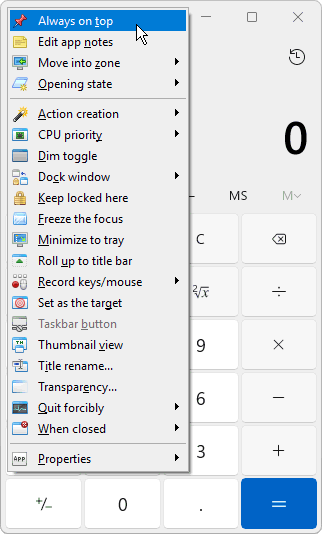
That window is now set to be on top, but since we'd like it to always open that way in future, we middle-click the window's icon area again and select "Opening state > Open like this (position, size, transparency, etc)":
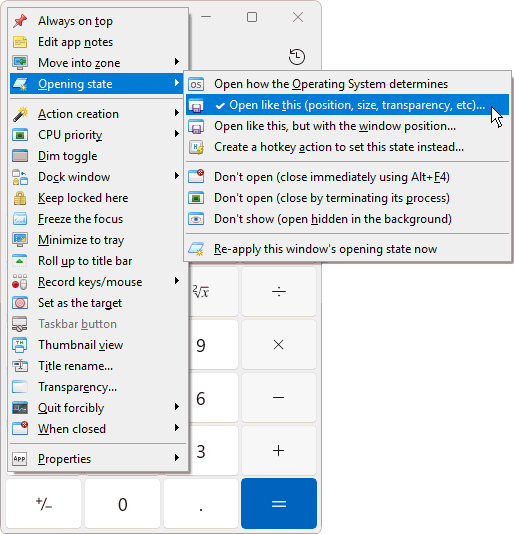
A confirmation window for the state now opens, so we can just click the "OK" button to accept it:
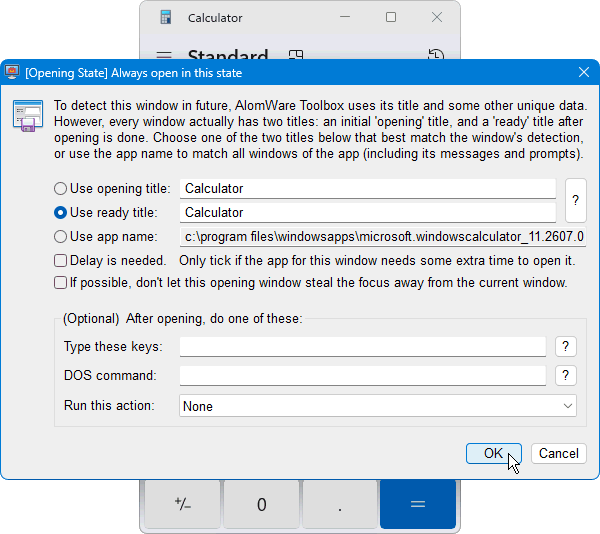
That's it! Now whenever that window opens (Calculator in this example), it will automatically open always on top of all others.
Tip: Did you see in the last screenshot that you can optionally set keystrokes to type, or a DOS command to run, or an automated action to run, whenever the window opens? Now that's handy!
"I would like to keep a small window in the corner of my screen while working in another application. When I switch between programs, the pinned window should remain visible instead of going behind the active window."
The solution posted there was to install Windows PowerToys, but that installation takes up 515 MB of disk space to do the job. Why would you waste almost half a GB of your precious hard drive capacity like that? Plus, PowerToys doesn't keep a window on top of the taskbar and can't set a window to be on top automatically whenever the window opens. AlomWare Toolbox handles both of these and is less than 4 MB in size with no installation needed (it's a portable app).
To keep any window on top of all others with AlomWare Toolbox, just create this simple action:
Code Select
(Start)
HOW TO USE: Copy from Start to End, and then paste into an action.
REFERENCE : See an example of pasting at alomware.com/paste.png
0001 Action: Allow failure messages "0"
0002 Window: Assign active ""
0003 Window: Always on top "toggle"
(End)
Assign this action to a hotkey trigger and press the hotkey when the desired window is active. If the window is NOT on top of all others, then it becomes so. If it's already on top, then it stops being that state (which is useful for apps that set their windows on top that you may not want to be on top).
If you don't want the action to toggle the top-most state and just make the window stay on top when the hotkey is pressed, just change step 3 so that the text "toggle" is "1" for yes (always on top).
Unlike other apps, AlomWare Toolbox keeps the top-most state over the Windows taskbar, too! The target window truly is on top of all others.
Alternatively: If you have a regular window that you always want to open in a top-most state (such as the Calculator), then you can make AlomWare Toolbox do that, too. Just middle-click the window's icon area and select "Always on top" from the menu:
That window is now set to be on top, but since we'd like it to always open that way in future, we middle-click the window's icon area again and select "Opening state > Open like this (position, size, transparency, etc)":
A confirmation window for the state now opens, so we can just click the "OK" button to accept it:
That's it! Now whenever that window opens (Calculator in this example), it will automatically open always on top of all others.
Tip: Did you see in the last screenshot that you can optionally set keystrokes to type, or a DOS command to run, or an automated action to run, whenever the window opens? Now that's handy!