- Welcome to AlomWare Toolbox Forum.
Recent posts
#81
Bug Reports / Re: Screen position detection
Last post by Paul (Lead Developer) - September 01, 2026, 06:11:35 PMConfirmed that auto-closing fails.  Something must've broken when I added non-English keyboard support. Will look into it.
I can't get the mouse positioning to fail, with or without multiple desktops, and with or without any windows being open. Please post an action (or email it to me) so I can copy it exactly and see how it goes at my end.
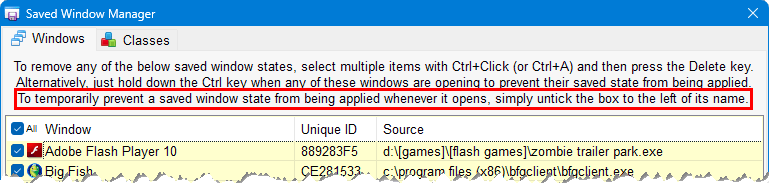
The checkboxes for saved windows in the "Saved Window Manager" have to be enabled for the window to be moved:
Something must've broken when I added non-English keyboard support. Will look into it.I can't get the mouse positioning to fail, with or without multiple desktops, and with or without any windows being open. Please post an action (or email it to me) so I can copy it exactly and see how it goes at my end.
The checkboxes for saved windows in the "Saved Window Manager" have to be enabled for the window to be moved:
#82
General Discussion / Re: Why so many updates?
Last post by rjbull - September 01, 2026, 06:17:33 AMQuote from: Paul (Lead Developer) on August 30, 2026, 09:02:20 AMThe app's free mode has been changed to an hour per launch now (for the next release), for indefinite relaunches. So if the user's internet is down, they can still use it in the free hourly blocks until it comes back. I will never totally lock paid users out of the app at any time.OK, thanks!The check is only done at launch, so if their PC is running 24/7 then the app will never do another activation check after it first launches.
It's time that Toolbox took this proper online activation stance like other paid apps. I'm losing sales by not doing it, and tired of people disputing with PayPal to get refunded after they get their permanent unlock code. The dishonesty in the world disgusts me.
I've heard of the 'PayPal refund' trick before, but only once, and hadn't realised it was so prevalent. Nasty.
#83
Bug Reports / [Fixed] Screen position detect...
Last post by oblivion - September 01, 2026, 03:00:46 AMFirst, this is the newest (updated today)
...hang on, my bracket autocompletion has stopped working... ({]
...properly. Open curly gives me {] which is definitely not right and that's not why I came here. Hold on while I check my settings...
({][]
Something's gone weird.
I'll restart shortly. In the meantime...
I have a mouse menu that has all my frequently used programs in. There's a tutorial I posted that covers it... but the thing consists of a single action with everything in, preceded by
That usually works OK but sometimes misbehaves if I have no windows open, and opens the menu somewhere off the left edge of the screen, meaning I don't get to see anything until I've hit cursor down twice and cursor right once, opening the first submenu on the left side of the screen.
I think I already know why -- I think Toolbox is happier with open windows than it is with only the desktop being visible, and I also think if the desktop is more than one monitor wide, it can also be a bit unpredictable.
I'm not completely sure what to ask for here, but I THINK I'd like to be able to specify the positioning to a specific monitor if more than one is attached... or perhaps for Toolbox to default to desktop-based rather than window-based positioning with the latter being an option via a parameter for the relevant positioning commands?
I'm going to restart, now, and see if I get my autoclosing brackets working again! I'll be back...
OK, post-restart. Autoclosing brackets is just as broken as previously.
Also, I have Toolbox set to autostart and manage a program that has no option to position itself; since the update, it's not been starting in the same (bottom right) corner -- but I might just have noticed why. The new checkbox in the saved window manager has all the entries unchecked -- presumably that means that everything's now unmanaged until the user checks everything?
...hang on, my bracket autocompletion has stopped working... ({]
...properly. Open curly gives me {] which is definitely not right and that's not why I came here. Hold on while I check my settings...
({][]
Something's gone weird.
I'll restart shortly. In the meantime...
I have a mouse menu that has all my frequently used programs in. There's a tutorial I posted that covers it... but the thing consists of a single action with everything in, preceded by
Code Select
(Start)
0001 Mouse: Move to desktop position "numpad5"
(End)
That usually works OK but sometimes misbehaves if I have no windows open, and opens the menu somewhere off the left edge of the screen, meaning I don't get to see anything until I've hit cursor down twice and cursor right once, opening the first submenu on the left side of the screen.
I think I already know why -- I think Toolbox is happier with open windows than it is with only the desktop being visible, and I also think if the desktop is more than one monitor wide, it can also be a bit unpredictable.
I'm not completely sure what to ask for here, but I THINK I'd like to be able to specify the positioning to a specific monitor if more than one is attached... or perhaps for Toolbox to default to desktop-based rather than window-based positioning with the latter being an option via a parameter for the relevant positioning commands?
I'm going to restart, now, and see if I get my autoclosing brackets working again! I'll be back...
OK, post-restart. Autoclosing brackets is just as broken as previously.
Also, I have Toolbox set to autostart and manage a program that has no option to position itself; since the update, it's not been starting in the same (bottom right) corner -- but I might just have noticed why. The new checkbox in the saved window manager has all the entries unchecked -- presumably that means that everything's now unmanaged until the user checks everything?
#84
Tips and Tricks / [Tip] Find an image on the des...
Last post by Paul (Lead Developer) - August 31, 2026, 10:45:05 PMAlomWare Toolbox lets you find any image on the desktop, such for clicking as part of an automated action. It uses the step called "Image: Find on desktop" to do the search. You first need to snip the image that you want to find and save it to a folder, then assign that snippet to find it on the desktop later.
If the image is found, its location is stored in these variables (which will all be blank if not found):
Here's an action that searches the desktop for the image specified in step 1, and then puts the mouse over the center of it (the calculation in step 3):
As a test without using an image file, you can snip part of the desktop with the Windows "Snipping Tool" and copy the snip to the clipboard. Then run the action below to find what you snipped on the desktop:
If the image is found, its location is stored in these variables (which will all be blank if not found):
- imagex$ = The image's left position on the desktop.
- imagey$ = The image's top position on the desktop.
- imagew$ = The image's width (in pixels).
- imageh$ = The image's height (in pixels).
Here's an action that searches the desktop for the image specified in step 1, and then puts the mouse over the center of it (the calculation in step 3):
Code Select
(Start)
HOW TO USE: Copy from Start to End, and then paste into an action.
REFERENCE : See an example of pasting at alomware.com/paste.png
0001 Image: Assign "c:\image\to\find.png"
0002 Image: Find on desktop ""
0003 Mouse: Move to desktop position "{=imagex$+(imagew$/2)},{=imagey$+(imageh$/2)}"
(End)
As a test without using an image file, you can snip part of the desktop with the Windows "Snipping Tool" and copy the snip to the clipboard. Then run the action below to find what you snipped on the desktop:
Code Select
(Start)
HOW TO USE: Copy from Start to End, and then paste into an action.
REFERENCE : See an example of pasting at alomware.com/paste.png
0001 Image: Assign "clip"
0002 Image: Find on desktop ""
0003 Mouse: Move to desktop position "{=imagex$+(imagew$/2)},{=imagey$+(imageh$/2)}"
(End)
#85
Tips and Tricks / [Tip] Create a QR code from a ...
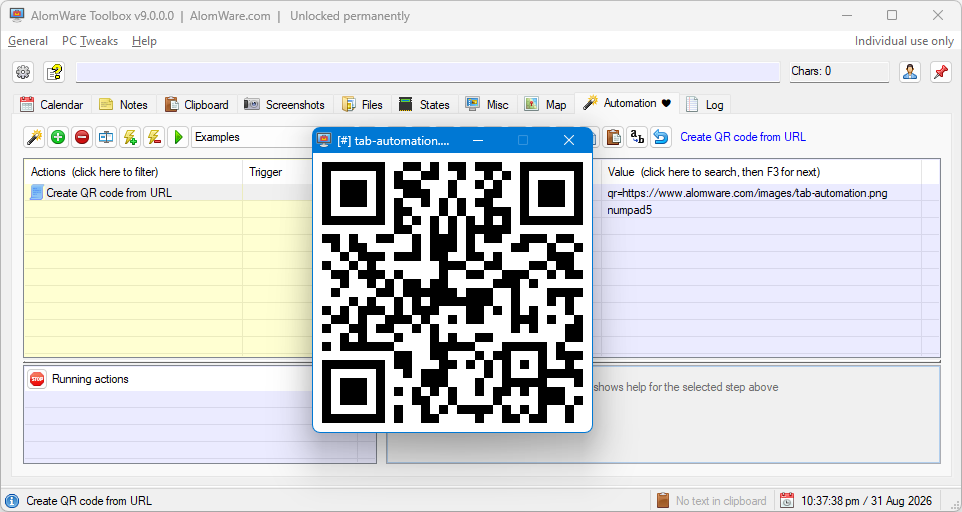
Last post by Paul (Lead Developer) - August 31, 2026, 10:40:45 PMWith AlomWare Toolbox, you can easily create a QR code from any website URL. You just use the "Image: Assign" step in the format "qr=URL". Here's an action that does it from a screenshot of AlomWare Toolbox's "Automation" tab:
Running this action results in the QR code being displayed in the center of the desktop. Try scanning it with your phone!
Here's an action that you can set to a hotkey that grabs the URL from the active web browser and creates a QR code for it:
Tip: You're not restricted to just website URLs; you can actually create a QR code for any text (but not "War and Peace"!). Just remember to prefix the text with "qr=" and you're all set.
Code Select
(Start)
HOW TO USE: Copy from Start to End, and then paste into an action.
REFERENCE : See an example of pasting at alomware.com/paste.png
0001 Image: Assign "qr=https://www.alomware.com/images/tab-automation.png"
0002 Image: Show at desktop position "numpad5"
(End)
Running this action results in the QR code being displayed in the center of the desktop. Try scanning it with your phone!
Here's an action that you can set to a hotkey that grabs the URL from the active web browser and creates a QR code for it:
Code Select
(Start)
HOW TO USE: Copy from Start to End, and then paste into an action.
REFERENCE : See an example of pasting at alomware.com/paste.png
0001 String: Assign URL from active browser ""
0002 String: Insert text "1,qr="
0003 Image: Assign "string$"
0004 Image: Show at desktop position "numpad5"
(End)
Tip: You're not restricted to just website URLs; you can actually create a QR code for any text (but not "War and Peace"!).
Just remember to prefix the text with "qr=" and you're all set. #86
Tips and Tricks / [Tip] Make the "Run" dialog bo...
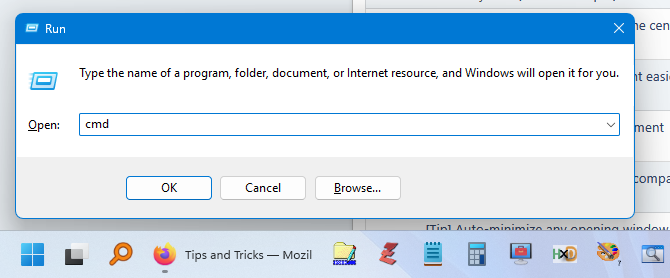
Last post by Paul (Lead Developer) - August 31, 2026, 10:09:56 PMBy default, the Windows "Run" dialog box is not wide enough to show long text. With AlomWare Toolbox, you can now have it always open wider:
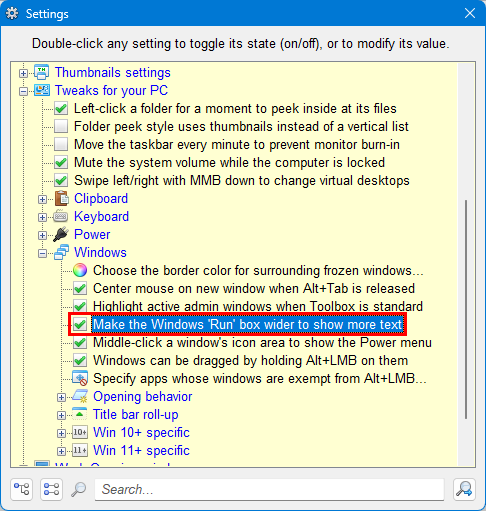
The setting is located here: "Tweaks for your PC > Windows > Make the Windows 'Run' box wider to show more text".
Once you go wide, you'll never go back!
The setting is located here: "Tweaks for your PC > Windows > Make the Windows 'Run' box wider to show more text".
Once you go wide, you'll never go back!
#87
Help and Support / Re: Possible suggestion -- wor...
Last post by Paul (Lead Developer) - August 31, 2026, 09:24:43 PM #88
Help and Support / Re: Possible suggestion -- wor...
Last post by oblivion - August 31, 2026, 07:40:12 PMGood grief, so it is! How did I fail to notice that, when I was looking specifically for it?
Magic. That must be it. Magic.
Thanks, Paul! (Is there an emoji for trying not to blush?)
#89
General Discussion / Re: Why so many updates?
Last post by GrahamB - August 31, 2026, 07:29:02 PMThanks for the test version. All good with my tests! Hope this solves your piracy issue. 
#90
Help and Support / Re: Possible suggestion -- wor...
Last post by Paul (Lead Developer) - August 31, 2026, 05:37:25 PMQuote from: oblivion on August 31, 2026, 12:18:07 AMWould it be useful if Toolbox did something similar -- just added a word count to the status bar for the current clipboard entry?Already there, my good man. Just look at the status bar when a clipboard item is selected in the list.
Or, you can use this action with a hotkey, which shows a word count of the clipboard text as a message:
Code Select
(Start)
HOW TO USE: Copy from Start to End, and then paste into an action.
REFERENCE : See an example of pasting at alomware.com/paste.png
0001 String: Assign from clipboard text ""
0002 Alert: Show a message "Clipboard text word count: stringwc$"
(End)