News:

Welcome to our NEW forum! We invite you to sign up today
so it can grow to be a valuable resource to all Toolbox users!

Main Menu
Menu

Show posts

This section allows you to view all posts made by this member. Note that you can only see posts made in areas you currently have access to.

Show posts Menu

Messages - Paul (Lead Developer)

#1
General Discussion / Re: Thinking of buying
May 23, 2026, 05:17:02 PM
Quote from: GrahamB on May 19, 2026, 10:25:00 PMAny hints on what's on the roadmap?
Missed this question in your post (sorry!). Just released v8.0.0.2, so see the "Changes" link at the home page.
#2
Bug Reports / Re: File rename bug
May 23, 2026, 05:15:11 PM
Fixed, and v8.0.0.2 has just been released. :)
#3
Phew! I'm just glad it's not a bug that I needed to investigate. :)
#4
Hi Oblivion. Does it work with any other keys, like {back} instead of {delete}? Can you also try {clear} to see if it clears the Run box's field? Or maybe it works with this combo: {ctrldown}a{ctrlup}{delete}.
#5
You can do it with a hotkey set to an action like this:

(Start)
HOW TO USE: Copy from Start to End, and then paste into an action.
REFERENCE : See an example of pasting at alomware.com/paste.png
0001 Computer: Terminate process "firefox.exe"
0002 Wait: For milliseconds to pass "500"
0003 Computer: App launch "firefox.exe"
(End)

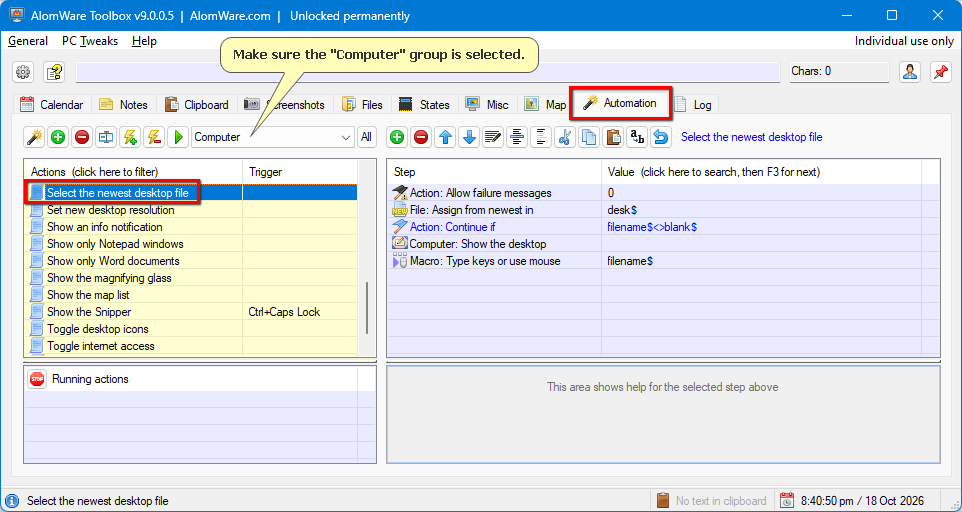
Which looks like this in the "Automation" tab for the action:


Note that in step 3 of the action, the path to the process ("firefox.exe") isn't needed because Firefox is officially installed. So with portable apps, or apps that aren't installed via a "Setup.exe" file, you will need to include the path to the exe in step 3 as well.
#6
General Discussion / Re: Thinking of buying
May 20, 2026, 03:48:53 PM
Thanks for your payment, Graham. :) Appreciate your support.

To any lurkers reading: you need to remember that AlomWare Toolbox isn't expensive when you understand that it replaces multiple other subscription-based productivity apps at once: macros, clipboard history, window management, text expansion, reminders, automation, and more. As the saying goes, you do truly get what you pay for. One lifetime fee for every PC that you own. You won't find a better deal than that! 8)
#7
General Discussion / Re: Thinking of buying
May 19, 2026, 01:22:42 PM
Hi Graham. I posted the solution to what you asked in a new topic, here: https://www.alomware.com/forum/index.php?topic=144.0
#8
Someone on this forum asked me how the Windows "Run" box can always be made to auto-open in the center of their desktop, because they have a large monitor and it bothers them to look to the left when the box opens (https://www.alomware.com/forum/index.php?topic=143.msg374#msg374). They also wanted no text to be defaulted in it.

Here's how to do it:

  • Open the Windows "Run" box by pressing Win+R.
  • Middle-click its icon area (step 1 below) to open the Power menu for the window.
  • Select "Opening state" from the Power menu (step 2).
  • Select "Open like this, but with the window position" (step 3).
  • Select "Centered" (step 4).


An "[Opening State]" window appears where we now set how AlomWare Toolbox can identify the window, and also set some optional actions when the window opens. For our purposes, we proceed as follows:

  • We leave "Use ready title" selected for the "Run" box's title (step 1 below).
  • Specify {delete} in the "Type these keys" section, to remove any default text when it opens (step 2).
  • Click "OK" to save the opening state (step 3).


That's it! Now whenever the Windows "Run" box is opened, it auto-moves to the center of the desktop and also clears any text in it. :)
#9
General Discussion / Re: Thinking of buying
May 18, 2026, 01:42:19 PM
Graham: Marketing is not my strong point, so perhaps I haven't explained the benefits clearly enough. I added the "Solutions" area in this forum to show that Toolbox is the answer for things that people are asking about online, and I will keep adding to it from time to time.

You're probably assuming that AlomWare Toolbox only does what you can see in its window. When you look deeper into the Settings (such as Tweaks) and the Automation steps, you'll realize that it's an absolute powerhouse of functionality that does so much for your PC. And this means you're not paying for separate multiple apps just to do what Toolbox does as one app. For example, why download Microsoft PowerToys (which installs over 1 GB of files all over your PC) just to keep windows on top, pick colors, and OCR text from the clipboard; when AlomWare Toolbox is a single portable exe file of less than 5 MB in size that does those plus a million other things?

If you think the app is expensive, it's because you haven't grasped all that it can do. It's not some cheap $1 toy but a fully capable Windows productivity suite, with its own built-in programming language. Is there something in particular you'd like to be able to do on your PC that you currently can't? Let me know and I'll see if I can cook up an automated action for it.

Here's some actual reviews from customers who've understood the benefits (scroll down to read them all): https://www.trustpilot.com/review/alomware.com

If price is your main issue, then don't forget PayPal has "Pay in 4" that might let you pay over 4 fortnightly instalments:

#10
Question: How to disable the caps lock FUNCTION but still have the caps lock button to use while gaming

"I would love for any type of assistance on getting the caps lock FUNTION to not work while still being able to use the cap lock as a button for gaming."

This person wants to use the Caps Lock key for gaming, but not to actually turn Caps Lock on when doing so. AlomWare Toolbox has a system tweak setting to do exactly that. Open Toolbox's "Settings" and navigate to "Tweaks for your PC > Keyboard > Freeze the Caps Lock key so that it always stays off" (as shown below). Done! Now whenever the Caps Lock key is now pressed, it turns off immediately again.

#11
Sometimes you'll be working on a document but need to see something on another document for reference. Usually this involves tiling both windows side-by-side, or shrinking one down, or moving your work document back and forth with its title bar. The situation is made even worse if both documents need to be maximized, because you can't tile, shrink, or move them. Using Alt+Tab is possible, but flicking between them like that is inconvenient due to needing to release both keys between each window switch.

AlomWare Toolbox to the rescue! Here's an action (that comes as default with the app in the "Windows" group) that you simply assign a hotkey to. When you hold down the hotkey, your current work window drops temporarily to 10% transparency so you can see what's underneath it (that is, the other document being referenced). When you release the hotkey, your work window goes back to its original transparency level again. So unlike Alt+Tab, you just hold the hotkey down to view underneath your work document, and then let go to return to your work document.

(Start)
HOW TO USE: Copy from Start to End, and then paste into an action.
REFERENCE : See an example of pasting at alomware.com/paste.png
0001 Action: Comment "This action requires a hotkey to be used."
0002 Window: Assign active ""
0003 String: Assign "wint$"
0004 Window: Transparency "10"
0005 Wait: For action hotkey to be released ""
0006 Window: Transparency "string$"
(End)

Here's an animation showing pressing and releasing of the hotkey with AlomWare Toolbox's window. As you can see, the window's transparency has gone to 10% so you can see this forum topic underneath it. You can change the transparency level in step 4 of the action if you prefer.

#12
Yes, this is handy. You can set as many hotkeys (or other triggers) as needed to show the app at a particular tab; and if its window isn't open, it'll auto-open as well.
#13
Quote from: oblivion on May 07, 2026, 09:57:13 PMI've clearly misunderstood the use of the IDs for variable storage. Can you set me right, please?

String IDs are just a way of saving the string to disk with a name (the ID). You can later assign it back into the string, like this:

(Start)
HOW TO USE: Copy from Start to End, and then paste into an action.
REFERENCE : See an example of pasting at alomware.com/paste.png
0001 String: Assign from random number "1-6"
0002 String: Save as ID "dice"
0003 String: Clear ""
0004 String: Assign from ID "dice"
0005 Alert: Show a message "The saved string was: string$"
(End)

So, they're used for string permanence for when you might need to use the string's content again in future. They're not used as a string variable per se, but as a way to assign a string variable.

For your action, it's good if it's working for you. I personally might use the "data$" variable instead of "counter$" (below), but it's up to you.

(Start)
HOW TO USE: Copy from Start to End, and then paste into an action.
REFERENCE : See an example of pasting at [url="http://alomware.com/paste.png"]alomware.com/paste.png[/url]
0001 Action: Comment "Remove quote chevrons, rewrap then replace chevrons"
0002 Action: Abort if no clipboard text ""
0003 Alert: Ask for a choice "#Wrap to what width?~20~30~40~50~60~70"
0004 Data: Assign "alert$"
0005 Action: Do next step if "data$=blank$"
0006   Data: Assign "68"
0007 String: Assign from clipboard text ""
0008 String: Replace text "~>>=~"
0009 String: Replace text "~>=~"
0010 String: Replace text "~~=[para]"
0011 String: Replace text "~=space$"
0012 String: Replace text "[para]=~~"
0013 String: Word wrap at "data$"
0014 String: Replace text "~=~>space$"
0015 Clipboard: Assign text "string$"
0016 Action: Do this block if "clip$<>"""
0017   Wait: For milliseconds to pass "200"
0018   Keyboard: Paste ""
0019 Action: End of block ""
(End)
#14
By default, AlomWare Toolbox shows all tabs for all its functions:


This may be overwhelming to new users, but you can change which ones to show, and/or their order. To do this, click the "Settings" button, and then choose "Toolbox's Window > Display and behavior > Set the tab order (and/or tabs not to show)":


You'll get a prompt where you can set which tabs to show, and in which order. Here, we're choosing to only show Clipboard, Screenshots, and Automation tabs:


After clicking the "OK" button to set the changes, AlomWare Toolbox will restart with your new tab preferences:


As you can see, this is a lot less clutter if you don't need to use any particular tabs. :)
#15
@GCRedditor136: I agree that it should be changed. I'll look into the best way to do it that doesn't break existing actions.

@oblivion: I hope it works for your needs. :)